AI studio
The AI studio makes and reworks pictures, and drafts text in the brand's voice. Everything it makes is a draft for you to look at: pictures land in the library, and text is only shown to you until you use it.
Open AI studio in the Create group of the sidebar. Everybody on the brand can look at it. Only an Editor or an Admin can make anything (see People and roles); for anybody else the page says "Only the brand's editors can make images."
You see the price first
Making things costs credits, paid from the brand's org. Nothing runs without your seeing what it will cost:
- Fill in the form.
- Press See the price. The page shows "About ... credits, paid from the brand's org".
- Press the action button (for example Generate) to go ahead at that price.
If you change anything in the form after that, the price is cleared and you ask again, so the price on the screen is always the price you pay. If a request is sent twice by mistake, you are charged once and the page says "Already made: nothing was charged again." If something fails, it says nothing was charged for what failed. See Credits.
The studio has four parts, chosen with Which part of the studio: Generate, Enhance or slice, Presets and Text.
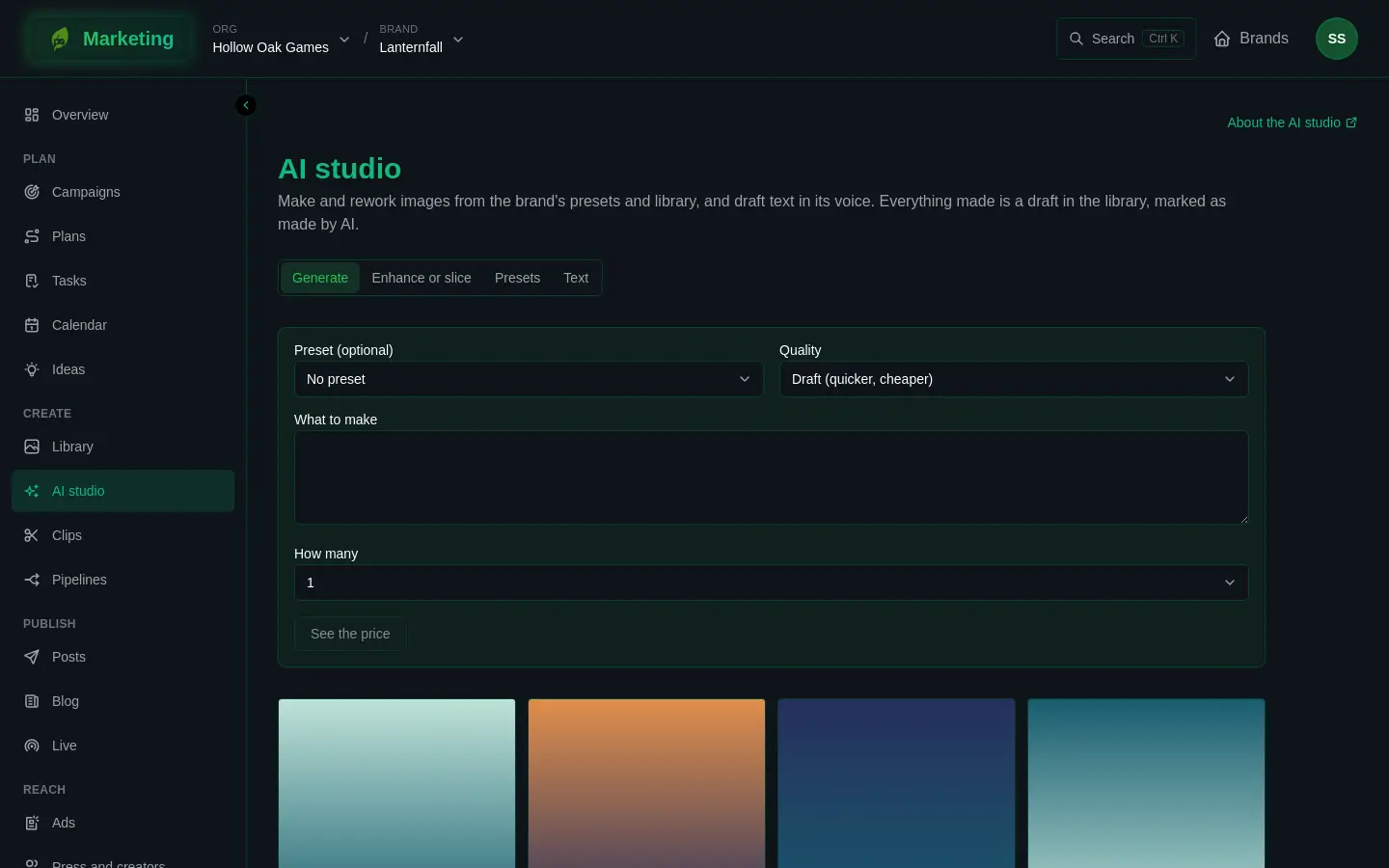
Generate
Make new pictures from words, from a preset, or from both.
- Optionally choose a Preset (optional). If it has blanks, a box appears for each one.
- Without a preset, choose a Quality: Draft (quicker, cheaper) or Final (best quality). With a preset, the preset decides.
- Write What to make, or with a preset, Anything to add (optional).
- Choose How many, from one to four.
- See the price, then press Generate.
See the price stays greyed out until there is a preset or some words, and until every blank of the preset is filled. When it is done the page says how many it made, as drafts in the library, and for how many credits.
Enhance or slice
Work from a picture you already have. Upload one, or choose one of the library's pictures.
- Enhance it treats the picture as the first reference. A preset or What to do says what to do with it. Press Enhance.
- Slice it into parts takes a list of parts, one a line, such as the logo, the background, the hero. Each part is made again by the model from the whole picture, on a transparent background, as a picture of its own. Nothing is cut from the original, so a part is a new picture, not a crop. Press Slice.
Both show the price first.
Presets
A preset is a saved way of making a picture. It has a prompt with blanks in braces, such as "key art of {subject} in our style". Press New preset and fill in:
- Name;
- the prompt, with blanks in braces. The blanks it finds are listed under it;
- Kind: Draft (quicker, cheaper), Final (best quality) or Edit an image;
- Width (optional) and Height (optional);
- References: collections such as Logo, Background or Cast, and single pictures, to show the model what your brand looks like;
- Notes (optional).
Press Save the preset. A preset can be changed with Edit. Archive puts it away, and Bring back returns it. An archived preset is not offered when you generate. Collections are made in the library (see Collections and the press kit).
Text
Text help writes against the brand's Voice guide, which you set in the brand's settings (see Brand settings). Choose what to help with: Captions, Hashtags, Thread, or Translate. Paste the text to work from into The text to work from, then:
- Captions writes one caption for each channel you add, each kept to its limit. Fill in Channel and Most characters and press Add the channel.
- Hashtags suggests hashtags for the text.
- Thread retells a blog post as a thread of short posts, none longer than the number under Most characters in one post of the thread.
- Translate writes the text in each language you tick.
See the price, then press Draft it. The answers have a copy button. The page says "Drafts only: nothing here is saved or posted until you use it." The same text help is in the post composer, where Use this puts a draft into the post. See Posts.
How AI results are marked
Pictures made here are drafts in the library, not approved. In the library they say Made with AI under their title, and in the studio's gallery below Generate and Enhance or slice they carry the badge Made by AI. A draft is not offered in the post composer until somebody approves it. See Library.
Look at what the studio makes before you use it. A model can get a detail wrong.
If something does not work
- The price will not show. Fill in what the form asks for first. For a preset, that includes every blank.
- It says it could not be done. Nothing was charged for what failed. Try again. If it keeps failing, check that the brand's org still has credits.