Steam toolkit
The Steam toolkit helps you prepare a game's Steam store page and watch how it does. Valve has no way for an app to change a store page, so every tool here ends in something you paste or upload in Steamworks yourself, with a checklist. Once you have done it there, you mark it done here and it goes on the brand's timeline, beside the numbers it might move.
What you need first
- A linked game. Steam appears in the sidebar only for a brand that has a game linked. If you do not see it, open Settings, and under What this brand markets link the game. Linking asks you to be an owner of both the brand and the game. See Brands and kits.
- A role that edits. Anyone on the brand can read the tools. Changing anything, including the paid actions below, needs an editor or an admin. See People and roles.
- The game's Steam app id, once the game has one. You enter it on this page, unless the game's Steam store is set up in the publishing console, in which case it is read from there.
If the brand has several linked games, each tool starts with a Game choice. If the game is not linked, a tool shows No game linked yet.
The front page
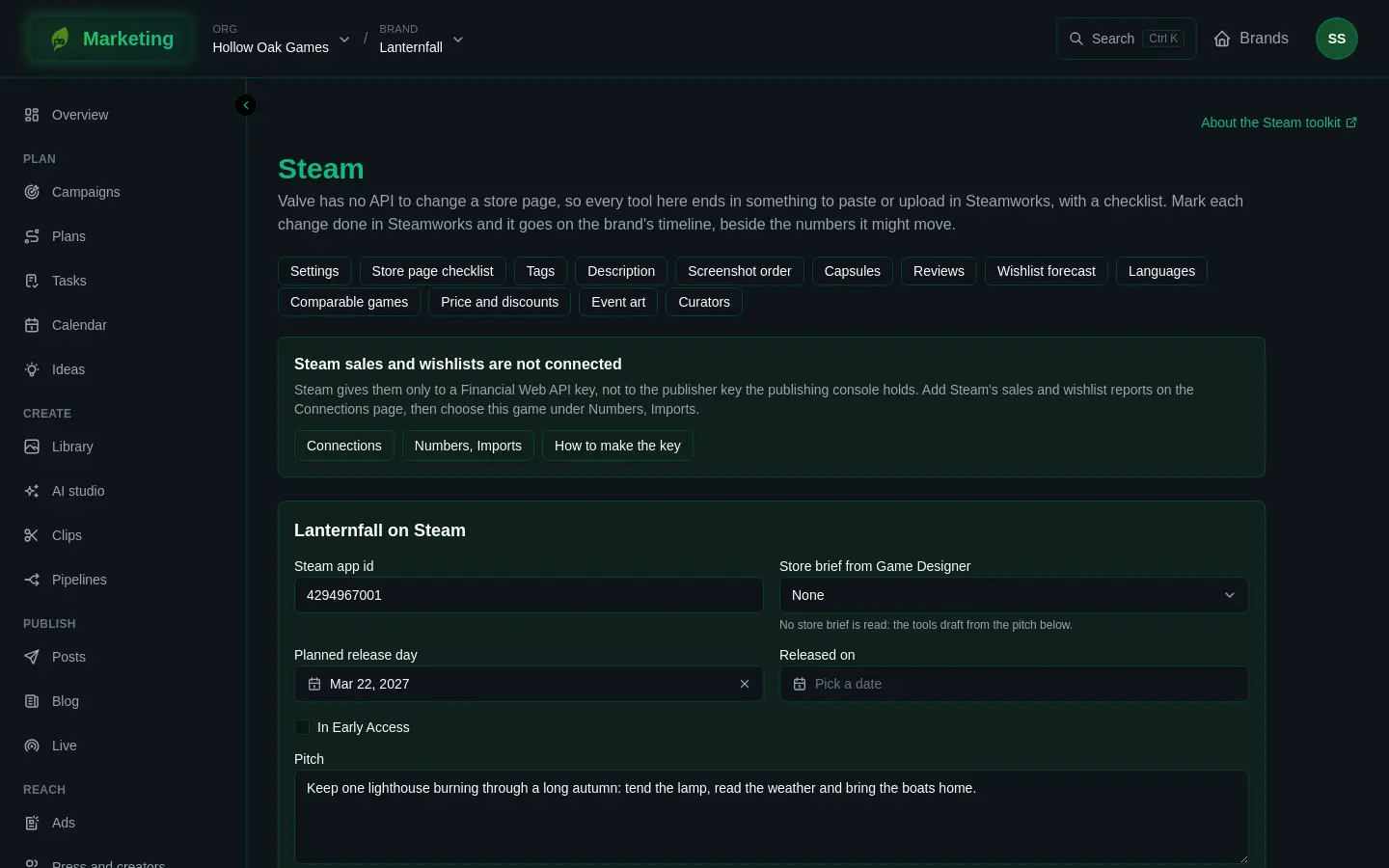
Open Steam. The front page, titled Settings in the row of tools, holds each linked game's Steam settings:
- Steam app id. The tools that read Steam, such as Review insights and Comparable games, need it. Where it reads Kept in the publishing console, with the game's Steam store, change it there.
- Store brief from Game Designer. Game Designer is not open to everybody yet. If your game is linked there, the tools can draft from its store brief, which holds only what has shipped. If not, this reads None (or The linked game) and the tools draft from the pitch instead.
- Planned release day and Released on, and In Early Access.
- Pitch. What the game is, in a paragraph or two. The tools draft tags and copy from it when no store brief is read.
- Languages the store page is in. The tools write and translate for these.
Press Save. Under Done in Steamworks is the log of every change you marked done in any tool, with when and by whom.
The tools
A row of buttons above every tool moves between them.
For writing the store page: Store page checklist, Tags, Description, Screenshot order, Capsules and Event art. See Steam store page tools.
For understanding how the game is doing: Reviews, Wishlist forecast, Languages, Comparable games, Price and discounts and Curators. See Steam insights.
How every tool ends
- The tool shows you what to paste or upload, in the order to do it, often with a Copy button.
- You do it in Steamworks.
- You press the tool's Done in Steamworks button, which carries the time you did it (now, unless you change it). A time in the future is refused.
- The change joins the log on the front page and appears as an event on the brand's timeline, so the charts in Numbers show where it happened.
Steamworks has the last word on what Steam accepts. The tools check what they can, such as lengths and sizes, and list what looks wrong, but a clean result here is not Steam's approval.
What costs credits
Some tools do their own work: proposing tags, drafting and translating a description, drawing images, scoring screenshots, making capsules, reading reviews and drafting replies. Before each one runs, the tool shows This costs about a number of credits, paid from the brand's org. Press Go ahead to run it or Cancel. Nothing is charged until you do, and a failed run is not charged. Pressing a button again for the same job does not pay twice.
If the org has no credits, or the work has no price, the tool says so and does not run.
Numbers the tools need
The wishlist tools read Steam's wishlist figures through the game's Steam financial key. Connect it as in Connect Steam financial. The tools that read Steam's public store pages need only the app id. Some tools also use Steam's traffic report, which the page asks you to import each week: see Numbers imports.
If it goes wrong
- A tool says to give the game its Steam app id first. Enter it on the front page and save.
- No game linked yet. Link one in Settings.
- A paid action that fails says so and charges nothing.