People and roles
A brand's people are the ones who work on it. Each holds a role, and the role decides what they can do: write, publish, go live, spend. This page covers the roles, how to invite someone, and who can do what.
The roles
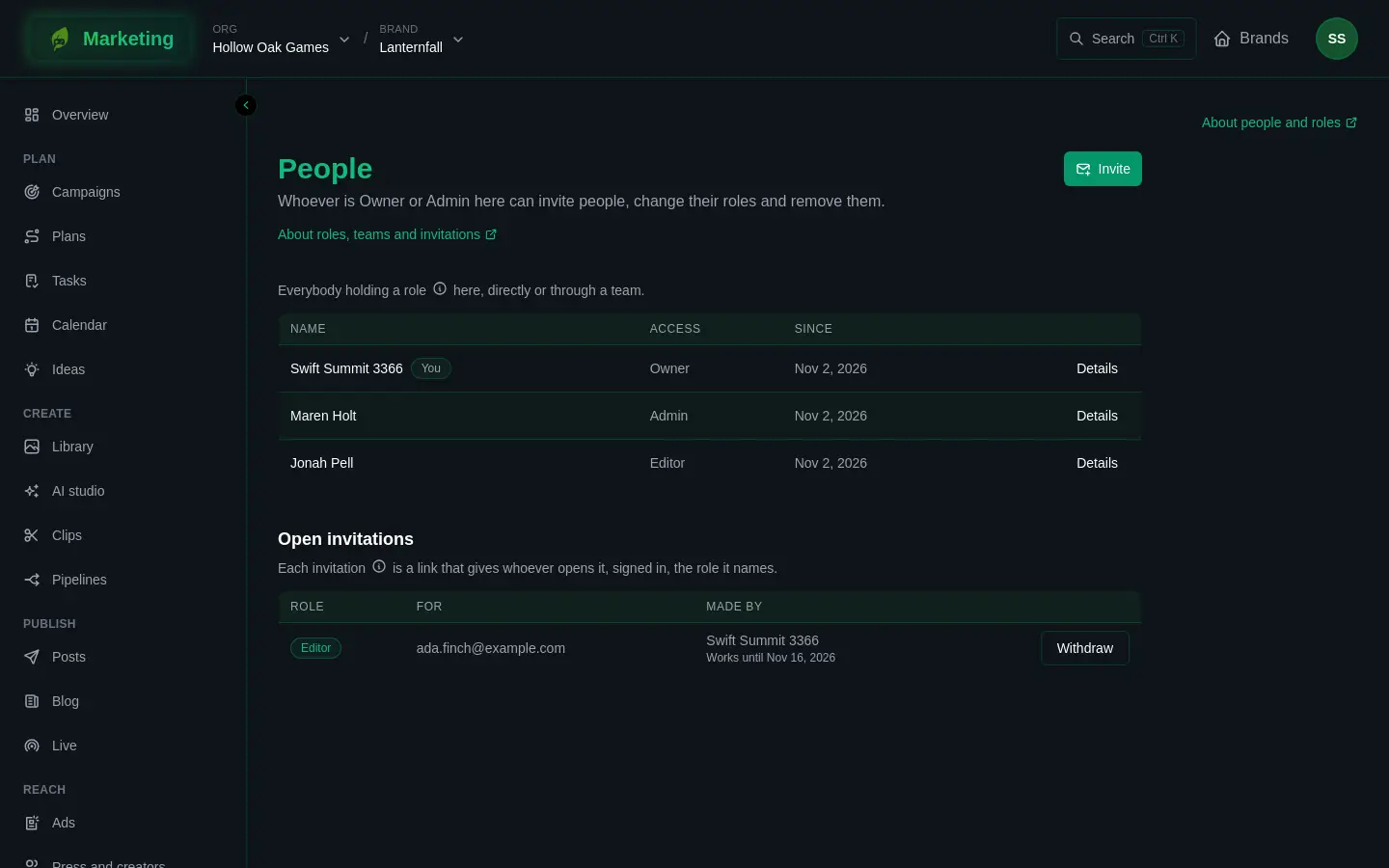
Open People, in the Brand section of the sidebar. A brand has five roles. Each includes everything the one before it can do.
| Role | What it adds |
|---|---|
| Viewer | Sees the brand and its numbers. |
| Commenter | Also comments on drafts. |
| Editor | Also drafts posts, plans, campaigns and tasks. |
| Admin | Also publishes, goes live, spends on ads and manages people. |
| Owner | Holds everything on the brand, and nobody changes that. |
The one who makes a brand is its Owner, marked Creator on the page. The Owner's role cannot be changed or removed here. Linking a game or a band to the brand also needs an Owner. An org's admins reach every brand of the org, and the page lists them as Admin of the org.
An org can also make roles of its own, on the org's Roles tab in your account, to carry a different mix of permissions. This page describes the five built-in ones.
Who can do what
| Viewer | Commenter | Editor | Admin | |
|---|---|---|---|---|
| See the brand, its posts, plans and numbers | yes | yes | yes | yes |
| Comment on drafts | yes | yes | yes | |
| Write drafts, plans, campaigns and tasks | yes | yes | ||
| Send a post for approval | yes | yes | ||
| Approve, schedule or publish a post | yes | |||
| Set up a live stream | yes | yes | ||
| Go live | yes | |||
| Change ad campaigns | yes | yes | ||
| Spend on ads | yes | |||
| See and change Press and creators | yes | yes | ||
| See and change game keys | yes | |||
| Make and change pipelines | yes | yes | ||
| Turn on a pipeline that posts, set its budgets | yes | |||
| Connect accounts and channels | yes | |||
| Invite people, change roles, remove people | yes |
Two things are tighter than the rest. Contacts are personal data, so Press and creators is closed to a viewer and a commenter. Keys are value, so only an admin sees them.
Credits and Posting by itself each add rules of their own on top.
Invite someone
Somebody who is Owner or Admin can invite people.
- On People, choose Invite.
- In Invite somebody, choose the Role the link will give.
- Add Their email (optional) and a Note (optional) if you want the list of invitations to make sense later. Nothing is sent to the email.
- Press Make an invitation link.
- Copy the link and send it yourself, by whatever way you already talk to them.
The link is shown once, so copy it before you close the box. It works once and lasts 14 days. Whoever opens it, signed in, joins the brand in the role it names. If they already hold a role there, they keep the one they have, and a link naming a lower role never lowers it.
Open links are listed under Open invitations. Withdraw ends one before it is used, and you get a moment to undo it.
Give a role to somebody already in the org
- Add somebody finds a person in the org by name or email and gives them a role straight away. Nobody new comes into the org this way; for that, invite them.
- Give a team a role gives a role to a whole team of the org, held for as long as each person is in the team. The button appears only if the org has teams.
To change someone's role, choose their row, or Details, and pick another under Give a role. Remove takes the role away, with an undo. Somebody who holds a role of their own on the brand can Leave it from their own row, except the Owner.
If somebody cannot see something
- A brand missing from Brands means you hold no role on it and are not an admin of the org.
- A page that says an admin of the brand does something, such as connecting its accounts, is telling you your role is too low for it. Ask an admin of the brand to change your role.