Blog
The Blog is the brand's own writing: news, patch notes, stories behind the work. You write and publish it here, and it appears on the brand's website. Drafts save as you type and stay private until you publish them, and a post can be scheduled to go live by itself.
Where readers see it
The top of Blog says "The blog on" followed by an address. That is the brand's blog. The address is the website of the first project the brand has linked that has one, or, if there is none, the first site added under Websites.
A website shows the blog only if it has been built to show GreenMind's blog. This page holds the posts. It cannot make a site that was not built for the blog display them. If the address is only /blog with no website in front of it, the brand has no site yet.
Who can do what
- Editors write posts, categories, tags and pictures.
- Admins also publish, schedule, unpublish, and delete a post that is live.
- Viewers can read every post, drafts included.
See People and roles.
Write a post
- Open Blog, then Posts, then press New post.
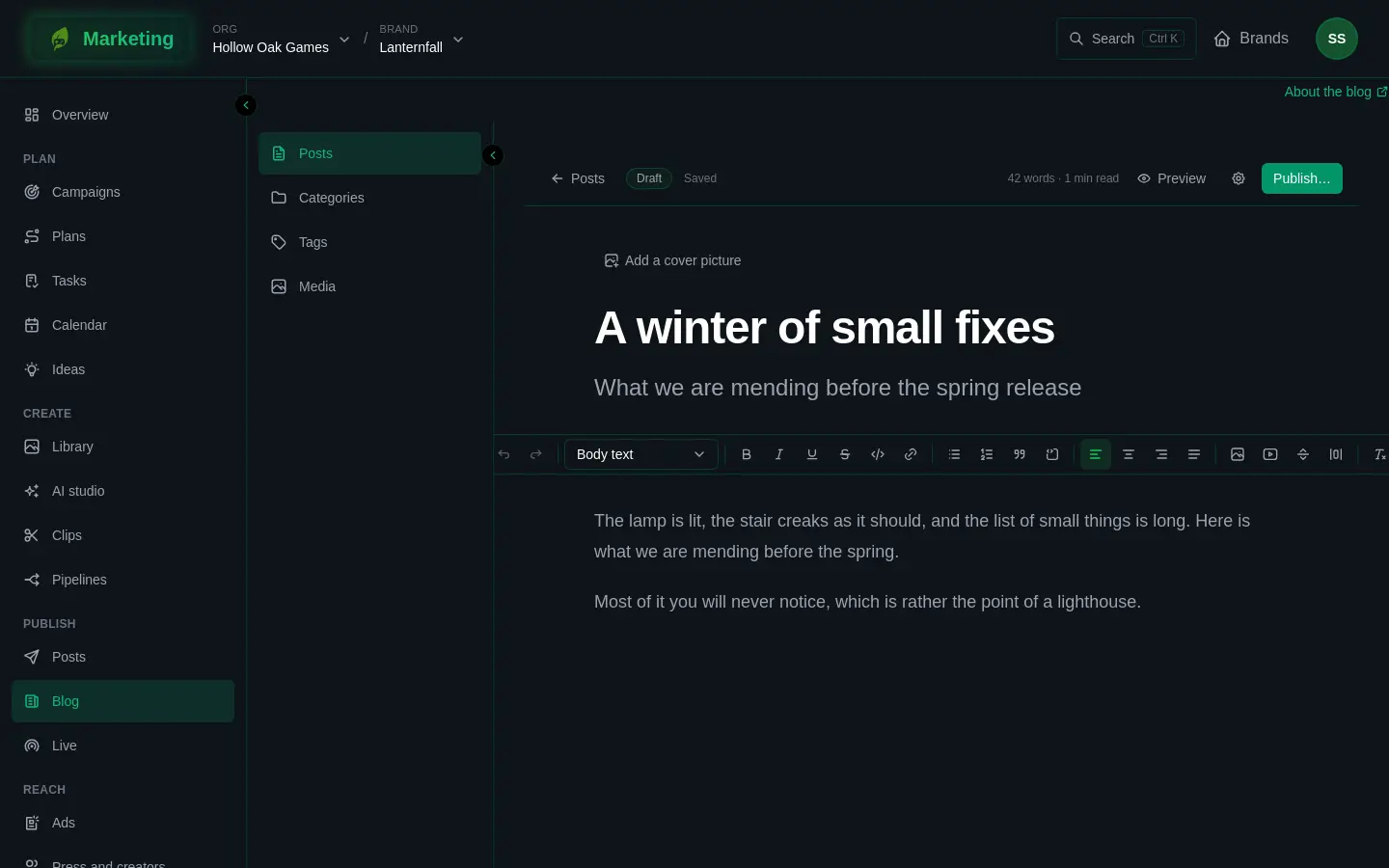
- Write the title where it says Title. Add a subtitle if you want one. Press Add a cover picture to choose one from the blog's pictures.
- Write the body. The toolbar has headings, bold, italic, lists, quotes, links and more. These shortcuts work as you type:
##for a heading,>for a quote,-or1.for a list,**bold**and_italic_. - Paste or drop a picture straight into the post. It uploads to the blog's pictures by itself. Paste a YouTube link on a line of its own and it becomes the video.
- Press Preview to see it as readers will, in the site's own colours.
The bar at the top says Saved, Saving…, Unsaved changes or Not saved. If it says Not saved, press Try again. If someone else changed the post meanwhile, it asks you to Reload.
Post settings
The settings button, named Post settings, opens a panel:
- Address: the Slug, which is the end of the post's web address. It follows the title until you type your own, and Match title puts it back. Once a post is live, leave it alone, because changing it breaks links that already point at the post.
- Filing: a Category and any Tags. Type a new name in the tags box and press Enter to make a tag.
- Presentation: a Byline (the author readers see), Feature this post (it leads the blog's front page while it is the newest featured post) and the Cover picture.
- Search and sharing: a Title and Description for search results and link previews. Leave them blank to use the post's title and opening.
Publish
- Press Publish…. A dialog titled Ready to publish? shows how the post will look in the blog's list. It needs a title first.
- Choose Now, or Schedule for later and pick a time under Publish at. The time must be in the future.
- Press Publish now or Schedule. A scheduled post shows its date and goes live by itself.
Once a post is live, edits do not reach readers until you press Update. Until then the bar says Unpublished changes.
To take a post down, open Post settings and press Unpublish, or Cancel schedule for one not yet live. It goes back to a draft. Delete post removes it, and a live one comes down straight away. You can Undo for a few seconds.
The list of Posts shows each post's status (Draft, Scheduled or Published), and Show and a search box narrow it.
Categories and tags
Categories are the sections the blog is divided into. Each post sits in one. Each has a Name, a Slug, a Description shown under its heading, and an Order: lower numbers come first. Deleting a category keeps its posts, without a category.
Tags are looser labels. A post can have several, and each has a page of its own.
Media
Media lists every picture uploaded for the blog, with its alt text. Drop files anywhere on the page to add them. Open a picture to write its Alt text, which describes it for people who cannot see it and is used wherever the picture goes. Remove from library stops a picture being offered when choosing pictures, and posts that already show it keep showing it. Pictures can be JPEG, PNG, WebP, GIF or AVIF.
Writing the blog from Posts
In Posts the Blog channel makes a blog post from a post. Its Options (JSON) box needs a title, as in {"title": "Patch 1.2 notes"}. It also takes a subtitle, a category that already exists, tags, and the byline as authorName. The text becomes the body, one paragraph for each blank line, with the pictures after it.