Importing numbers
Some places give you their figures only as a file you download: a Steamworks report, a streaming service's artist dashboard, Bandcamp's sales report. Importing reads that file into Numbers, so the figures sit beside everything else.
Open Numbers, then Imports. Anyone who can see the brand can read the list of imports. The form to import a file is for Editors and above.
Choose what the file is
The list What it is depends on what the brand markets. Under it the page tells you where to find the export.
| Kind | Who is offered it |
|---|---|
| Any CSV | Every brand |
| Steam traffic, Steam UTM analytics | A brand that markets a game |
| Spotify for Artists, Apple Music for Artists, Bandcamp sales | A brand that markets a band |
What a brand markets is set on its Settings page, under What this brand markets.
Import a file
- Choose What it is.
- Fill in what the kind asks for.
- The day it covers, if the file has no dates. A file with a date column ignores this. A Steam traffic export has no dates, so export one day at a time and give its day here.
- Where the figures are from (lower case, such as spotify). Only for Any CSV. Use lower-case letters, digits and hyphens.
- Drop the file on Drop the exported file here. It can be a
.csv,.tsvor.txtfile. - Press Import it.
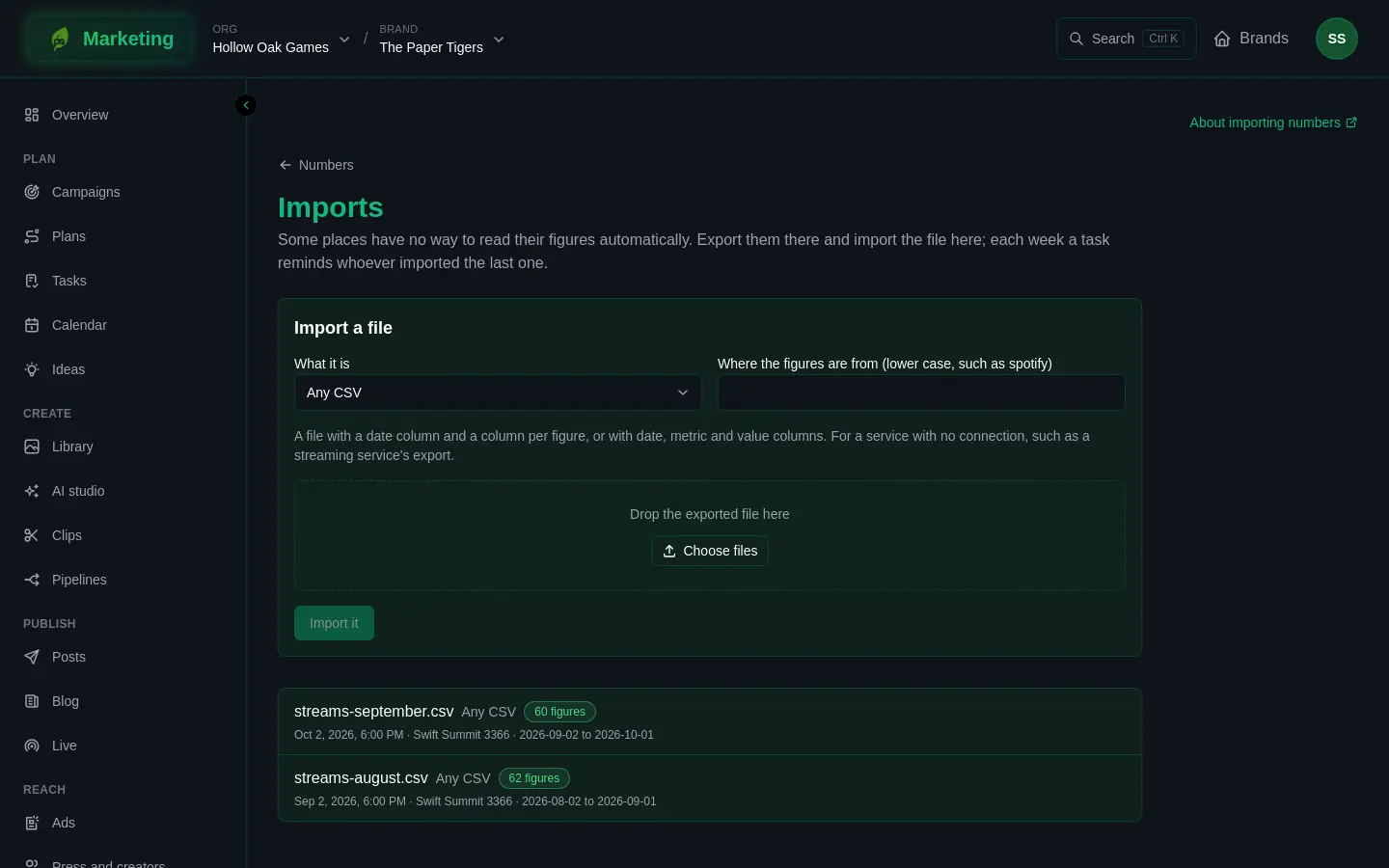
The page says how many figures it read, and lists any lines it could not use. Each import then appears in the list below, with the file's name, who imported it and the days it covered, and a badge: the number of figures it gave, or Not read if nothing in it could be used.
A file with a few bad lines still imports the good ones. Importing the same days again replaces what was there for those days, so you can import a corrected file over a wrong one.
A copy of the file is kept in the library. For Bandcamp only the date, item, quantity, currency and net amount columns are read or kept; buyers' details are dropped.
Any CSV
Use it for a service with no connection of its own, such as a streaming service's export. Marketing reads two shapes:
- Wide: a
dateordaycolumn, then a column for each figure. - Long:
date,metricandvaluecolumns, and adimensioncolumn if you want a breakdown.
date,streams,listeners
2026-10-26,1204,310
2026-10-27,1311,298
The figures are read as plain counts, and taken as final. They appear in Numbers under the name you gave in Where the figures are from, shown as csv- and that name. Use the same name each time so the figures stay in one series.
Dates can be written 2026-10-01, 1 Oct 2026 or Oct 1, 2026. A date such as 10/1/2026 is read month first, so it is 1 October. Numbers can have thousands separators. Files can use commas, tabs or semicolons, and a title above the headings is skipped.
The weekly reminder
For the Steam, Spotify, Apple Music and Bandcamp kinds, Marketing makes a task when nothing of that kind has been imported for a while: Import this week's file, followed by the kind. It is given to whoever imported that kind last, or left open for anybody if nobody did or they can no longer see the brand. Find it under Tasks. It is not made again while one is still open, and Any CSV never gets one.
Store numbers
Steam sales and wishlists, Google Play and the App Store have an API, so they need no file. The Store numbers section of this page says which app each store connection reports on. Its figures then arrive every day, for the first game the brand markets.
- Connect the store on the brand's Connections page. See Connect Steam sales and wishlist reports, Connect Google Play reports or Connect App Store Connect.
- On Imports, under Store numbers, press Use a connection.
- Choose the Connection, then give the app: the Steam app ID, the Package name for Google Play, or the Apple ID of the app.
- Press Use it.
Only an admin of the brand sees this form. Everybody else sees a line saying so. These daily pulls use your org's credits; see Numbers.
If it goes wrong
A file marked Not read, a message about a missing column or a date, or store numbers that never arrive are covered in Number problems.