Library
The library is where the brand keeps its screenshots, trailers, logos and key art, with where each came from and what it may be used for. Posts, public collections and store bundles all take their files from here.
Open Library in the Create group of the sidebar. The library has four pages, which you move between with the links at the top: Files, Collections, Store bundles and Press kit. This page is about Files. The others have their own pages: Collections and the press kit and Store bundles.
Everybody on the brand can look. An Editor or an Admin can upload and change files (see People and roles).
Add files
Drop files on the upload area, or choose them. Several at once is fine. Each file becomes an item in the library, of the kind its type says: Image, Video, Audio, Document or Other. A toast tells you how many arrived, and how many could not be uploaded.
A new file is a Draft. It is in the library, but nothing else uses it yet. See "Approve a file", below.
Find a file
Type in the search box, which looks through titles, alt text and tags. The Kind menu narrows the list to one kind, and starts at Every kind. If there are many files, Older and Newer move through them. Select a file to open it.
Describe a file
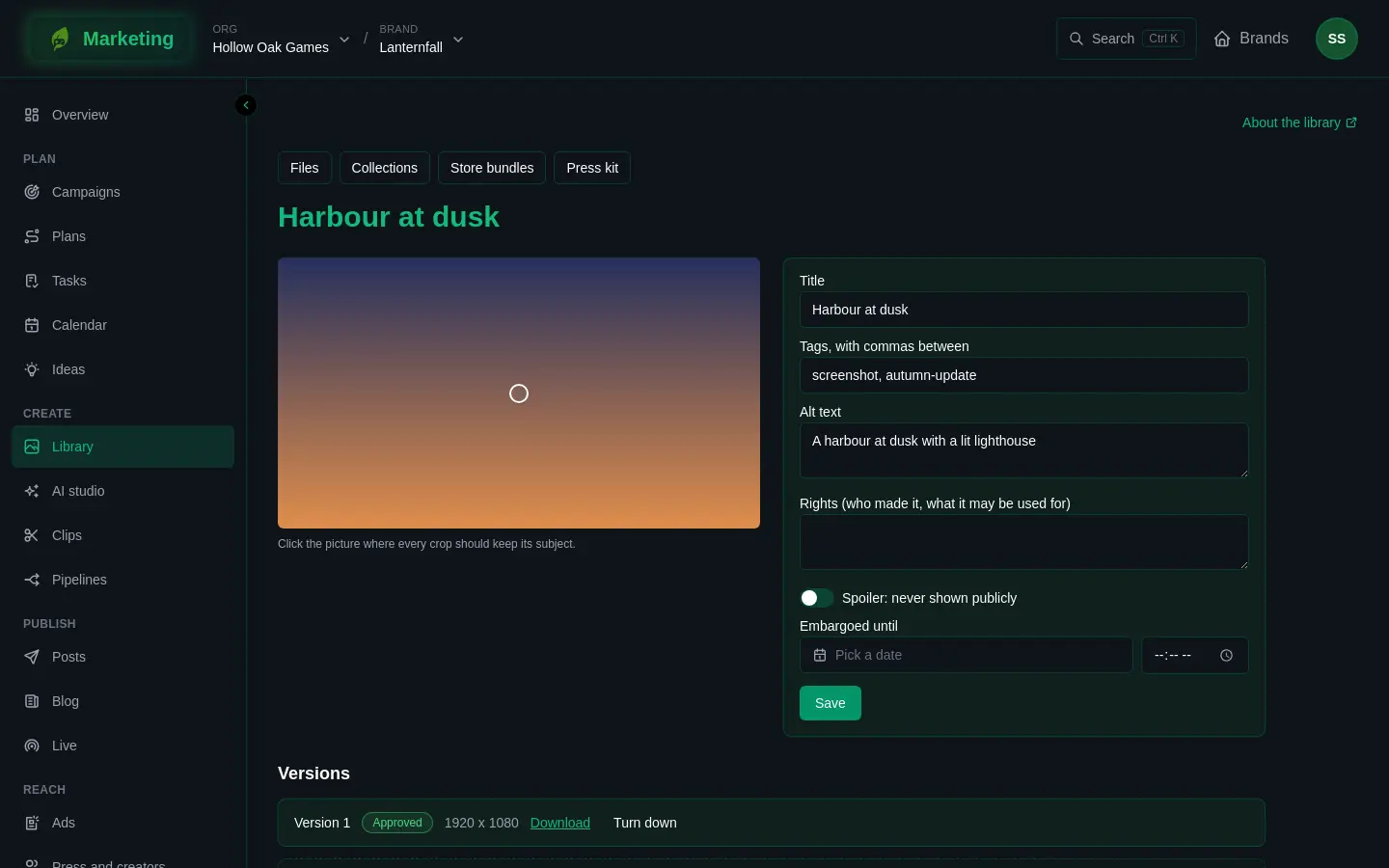
On a file's own page you can set:
- Title.
- Tags, with commas between. They are searchable.
- Alt text: what the picture shows, for people who cannot see it.
- Rights (who made it, what it may be used for). This is a note for your team and the people who use the file. Write the credit and any limits.
- Spoiler: never shown publicly. Turn it on for anything you do not want the public to see yet.
- Embargoed until: a date and time before which it is not shown publicly.
Press Save. For a picture, you can also click on it where every crop should keep its subject. That is the focus point, and it is used when the picture is cut to a size.
Approve a file
A file can have several versions. Each has a state: Requested, Generating, Draft, Approved or Rejected. Press Approve on a version that is ready to use, or Turn down to reject it. To add a new version of the same file, use the upload area at the bottom of the page.
What approval changes:
- The post composer offers only approved pictures and videos. See Posts.
- A public collection shows only approved files that are not a spoiler and are past any embargo. See Collections and the press kit.
A picture made in the AI studio arrives as a draft too, and is approved the same way. It says Made with AI under its title.
Sizes
For a brand with a linked game or band, a file also shows a list called Sizes, with every size the brand has a preset for, such as the pictures a store asks for. Each size is cut around the focus point.
- Press Render beside a size. The button changes to show the price in credits.
- Press it again to go ahead. The size shows Being made, then Ready with a Download link.
- Press Check to test a picture against that size. It tells you if the size, weight or format is wrong, and it also warns, as a guess, if text may sit outside the safe area or a logo may be too small to read. Treat those two as hints.
Moving the focus point makes new sizes. See Credits.
Video
A video plays on its page. Press Make its HLS stream and poster (costs credits) to prepare it for the web. The badge Ready for the web shows when that is done.
A recording of one of the brand's streams says "Getting this recording ready to play" for a few minutes. That costs nothing. If a video will not play in your browser, the page says so and offers Download it.
If something does not work
- A file is missing in the post composer. It is not approved yet, or it is not a picture or a video.
- Save is greyed out. The title is empty. Give the file a title.
- Some files did not upload. Try them again. Only the ones that failed need it.