Keys
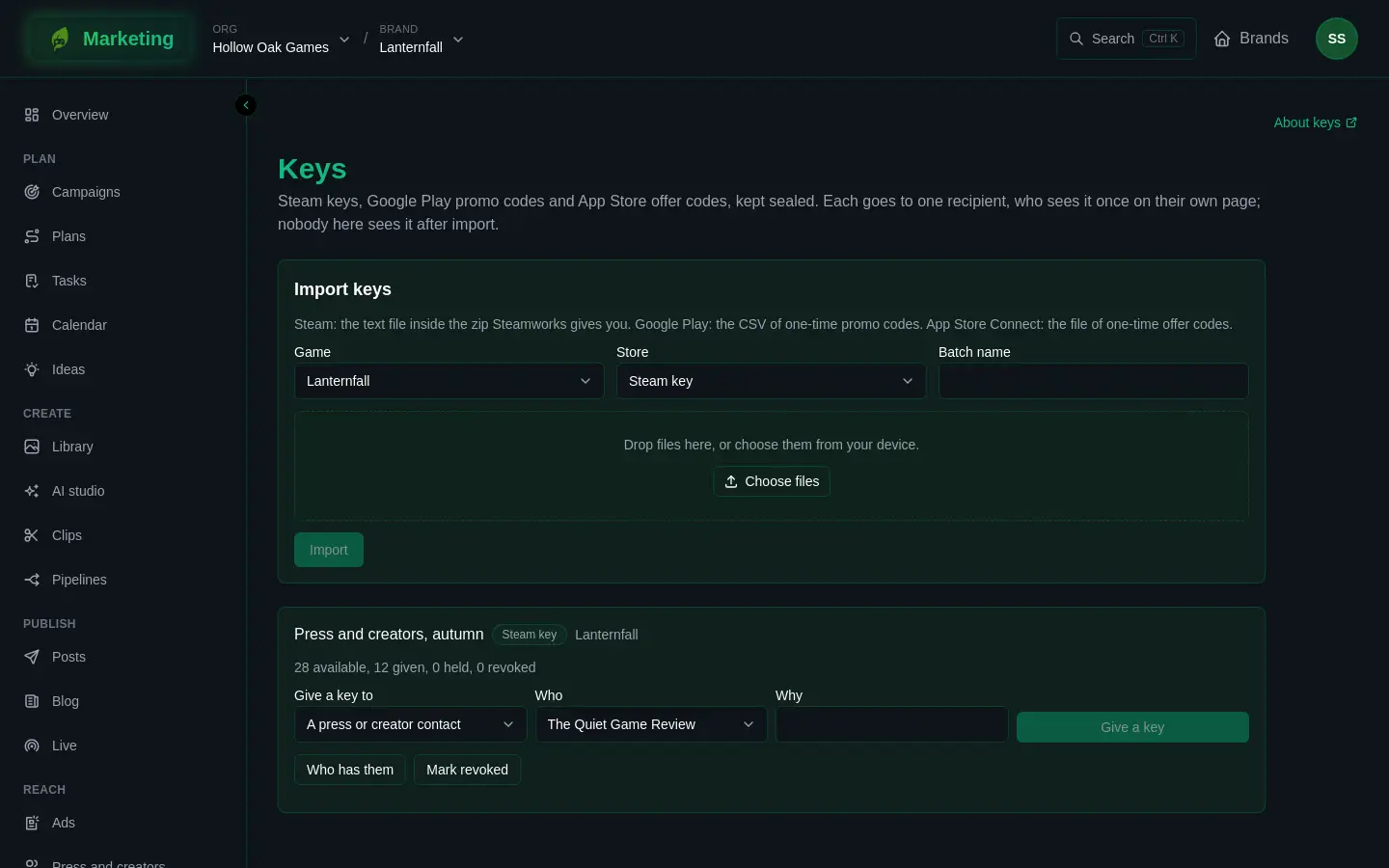
Keys holds the Steam keys, Google Play promo codes and App Store offer codes you get from the stores, and gives each one to one recipient. The codes are kept sealed. Nobody on the brand sees a code after import. The recipient sees it once, on their own page.
What you need first
- A linked game. Keys always appears in the sidebar, but without a game it shows No game to keep keys for and asks you to link one. Open Settings, and under What this brand markets link the game. Linking asks you to be an owner of both the brand and the game, and a game is marketed by one brand at most. See Brands and kits.
- An admin. Reading and changing keys are both an admin's by default, since a code is worth money. An org's own roles may be set up differently. Anyone else who opens Keys is refused the page. See People and roles.
- A file of codes from the store. Keys cannot ask a store for codes. You request them in the store's own console and download the file.
Import a batch
- Request the codes in the store's console and download the file. Steam gives a zip: the file to use is the text file inside it. Google Play gives a CSV of one-time promo codes. App Store Connect gives a file of one-time offer codes.
- Under Import keys, choose the Game, the Store, and give the batch a Batch name.
- Drop the file in, or choose it, and press Import.
The page reads each store's file by what a code looks like, so a header line or a column of redemption links is passed over. It then says how many were imported, how many were already in the pool, and the numbers of any lines that held no code.
The file is read in your browser and sent as text. The file itself is never uploaded or kept. A code that is already in the brand's pool for the same store is counted and skipped, whichever batch it came in.
Read a batch
Each batch shows its store, its game and how many keys are available, given, held and revoked. Held keys are set aside for somebody to be chosen later and are not given out meanwhile. Running low appears when few keys are left, and a task is raised for the brand once, when a batch gets low.
Press Who has them to list the keys that are not available: who each went to, when, the reason you wrote, and whether the recipient has opened their page (opened or not opened yet). Opened means they saw the page. The stores do not report back whether a code was redeemed, so Keys cannot tell you that.
Give a key
- In a batch with keys left, choose Give a key to:
- A press or creator contact, then pick them from the list. See Press and creators.
- A campaign, then pick it, and optionally add a label.
- A giveaway, with a label.
- Somebody, by hand, with a label.
- Write Why. It is required, and it is kept with the key.
- Press Give a key.
The page then shows a link. Send it to the recipient yourself: it opens a page that shows the key once, and the link is not shown here again, so copy it before you press Done. What the recipient sees is in Press pages the public sees.
Two people giving at once never receive the same key.
Creators who ask on the brand's public page get theirs from Key requests in Press and creators, where Give a key can mail them the link for you.
Withdraw a batch
If a batch has been revoked in the store's console, press Mark revoked on it. Do this only once it is revoked there. Every key in the batch stops being given out, and the codes still held are erased. A key already given keeps the name of its recipient, and its link tells them the key was withdrawn.
If it goes wrong
- The keys were not imported. The page says why. A file with no recognisable codes gives you the line numbers it rejected.
- No key was given. The page shows the reason. If the batch has no keys left, import another or choose a different batch.
- A recipient who lost their key cannot get it from the link a second time. Give them another key.