Steam store page tools
These are the tools in the Steam toolkit for getting a game's Steam store page ready: a checklist, tags, the description, screenshot order, capsule art and event art. Each ends in something to paste or upload in Steamworks. You do that there, then mark it done here.
You need a linked game to see them. Anyone on the brand can read them, and an editor or an admin can change things. Tools marked as paid show a price in credits first, and nothing runs until you press Go ahead.
Store page checklist
Store page checklist shows what Steam asks for Before Coming Soon and Before launch, with a count such as 3 of 8 for each. Steamworks' own checklist is the authority. This one reads what the brand has here, and what you mark done in Steamworks.
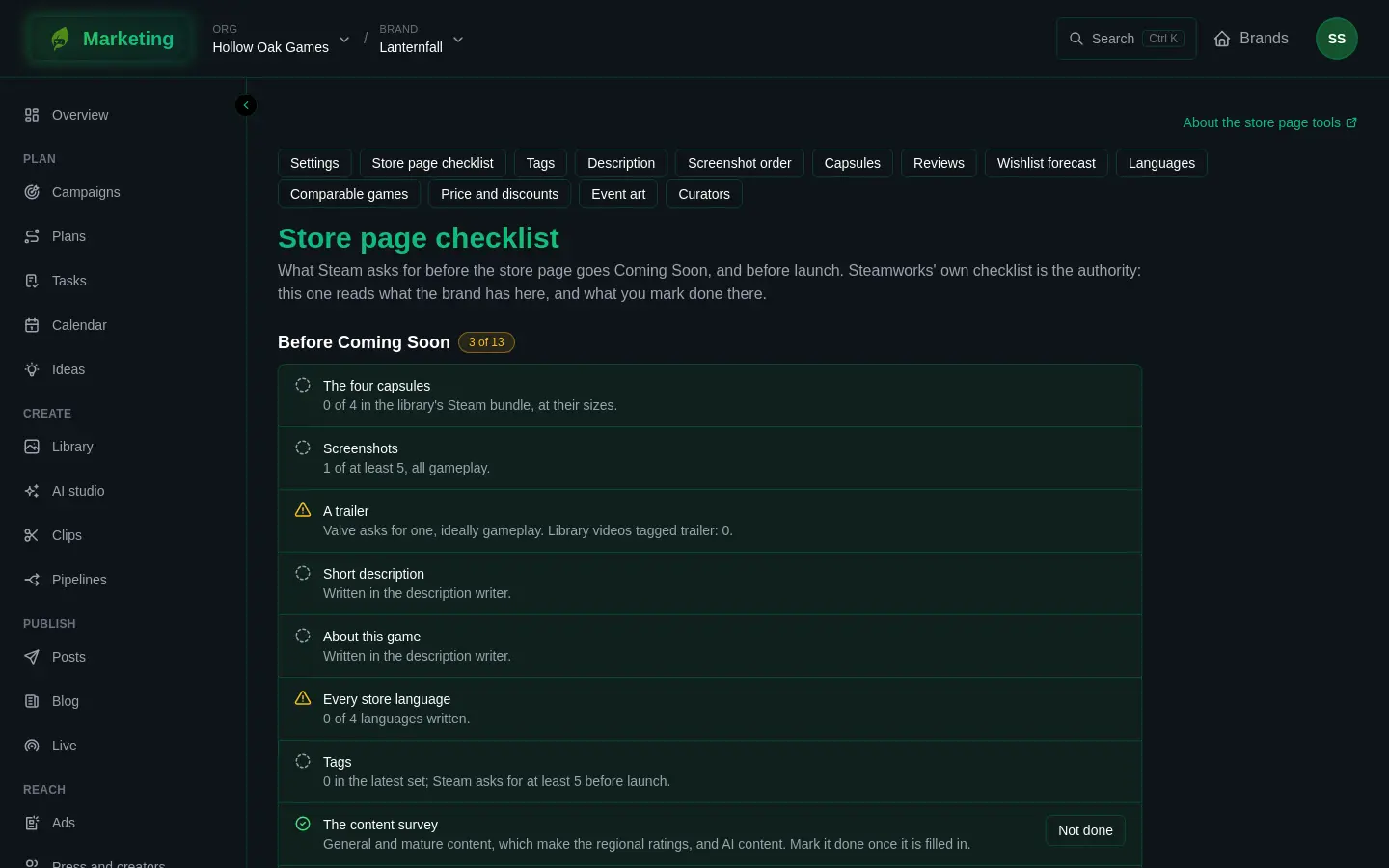
Some items fill themselves in from the brand's work: the four capsules and other library art in the library's Steam bundle, screenshots, a trailer (library videos tagged trailer), the short description and About this game, store languages written, tags, the release date, the price and AI content in the bundle. Items only you can know have a Done in Steamworks button, and Not done takes it back. These include the content survey, system requirements, requesting the store page review, going live as Coming Soon, ratings and the build review.
Below the list, System requirements, drafted from the game's targets gives text per platform with a Copy button, ready to paste. A badge warns if the operating system, memory or storage is missing. If the game has no Steam targets yet, the page says to set its platforms in the game's project.
Each game's progress also shows on the brand's overview.
Tags
Tags (the page is titled Tag chooser) builds a set of up to 20 tags in Steam's order. The page explains why order matters: Steam counts the first 20, weighs the first ones most and reads the first five as what the game is.
- Press Propose a set. It drafts from the game's store brief or pitch, and from the tags of the Comparable games you watch. It is paid. If there is no brief or pitch, the page asks you to write the pitch on the Steam page first.
- Each tag shows its place, a note saying whether it defines the game, is read by filters or is only counted, whether it is Crowded, Busy or Open, how many comparable games carry it, and why it was chosen.
- A tag can carry a red warning, for example mature content the description does not show, a business model the game is not, or no support in the description or comparable games. Problems with the set itself are listed too: too many, too few, a duplicate, or a tag that is not one of Steam's.
- Press Edit a copy to reorder, add, remove or change the reason for tags, then Save the set. You can also press Choose tags by hand from nothing.
- Press Copy the tags in order, put them in the Tag Wizard in Steamworks, and press Done in Steamworks.
Once a set is in Steamworks it is marked In Steamworks, and the page compares store impressions a day while it was the set against before, labelled as correlation only.
Description
Description writes the Short description and About this game, one language at a time.
- Choose the Language. The choices are the languages set on the front page.
- Press Draft it (paid). It uses the game's store brief and the brand's voice guide.
- Edit the short description. The page counts its characters. Edit About this game as sections, each with a heading, an optional picture from the library and a body in Steam's markup, then press Save.
- Under Headings and art as images, choose a Font and Colour and press Draw the images (paid, one render per image). Headings are drawn exactly, never generated, so they are spelt right. If there are no fonts, upload a font to the library and tag it font.
- Under Translate, press Translate from this language (paid) to make a draft in every other store language. Check each one.
- Under To paste and upload, read the problems listed, such as unknown markup, a link off Steam, or an image too wide or heavy. Use the copy buttons for the short description and About this game, and upload the images in the order listed on the Description tab in Steamworks, keeping each file's name.
- Press Done in Steamworks.
Screenshot order
Screenshot order proposes an order for the library's screenshots and trailers. Tag screenshots screenshot and trailers trailer in the library first.
- If some are not scored, press the paid button that reads like Score 5 not scored yet. Each gets scores for readable, gameplay and hook.
- Read the Proposed order: the shot that shows the hook best first, then the strongest, with variety, and menu-like or near-duplicate shots late. Each says why. The page also names the trailer to put first.
- Reorder them in Steamworks, then press Reordered in Steamworks.
Afterwards, Since the reorder shows wishlists per visit before and after. It says when the evidence is thin and that it is correlation only: a sale or a post in the same days could move both. Import Steam's traffic report each week to firm it up: see Numbers imports.
Capsules
Capsules (the capsule studio) makes every Steam capsule from one master picture.
- Choose the Master picture from the library, and the Logo, on transparency. With no logo, choose No logo: draw the title and a Title font.
- Move Focus, across and Focus, down to say which part of the picture matters.
- Tick the capsules you want, each shown with its size.
- Press Make the capsules (paid).
Each result is checked: the right size, not too heavy, a format Steam takes, a logo large enough, and a warning to look twice if text may fall outside the safe area or the logo may not read at the smallest capsule. Results are kept in the library's Steam bundle, one file per size: see Store bundles. Upload them in Steamworks, then press Uploaded in Steamworks.
Event art
Event art (titled Events and announcements) makes the cover for a Steam event, 800 by 450, and a header, 1920 by 622, from a library picture. Choose a Picture, then press Make it (paid) on each. They appear on the picture's page in the library as well.
The announcement itself is a post to the Steam announcement channel, written in Steam's markup and posted by a person. Press Write the announcement to start one in Posts; see finishing a post for channels you post to by hand. This tool has no Done in Steamworks button.