Posts
Posts is where you write something once and send it to several places. Each channel gets its own version of the text, already cut to its length, and every link in it is tracked on its own.
Who can do what
By default:
- Editors write posts, change them, send them for approval and throw them away.
- Admins also approve, schedule, publish now, cancel a schedule and try a failed version again.
- Commenters and viewers can read posts.
The buttons you see follow your role. People and roles has the full list.
Write a post
- Open Posts and press New post.
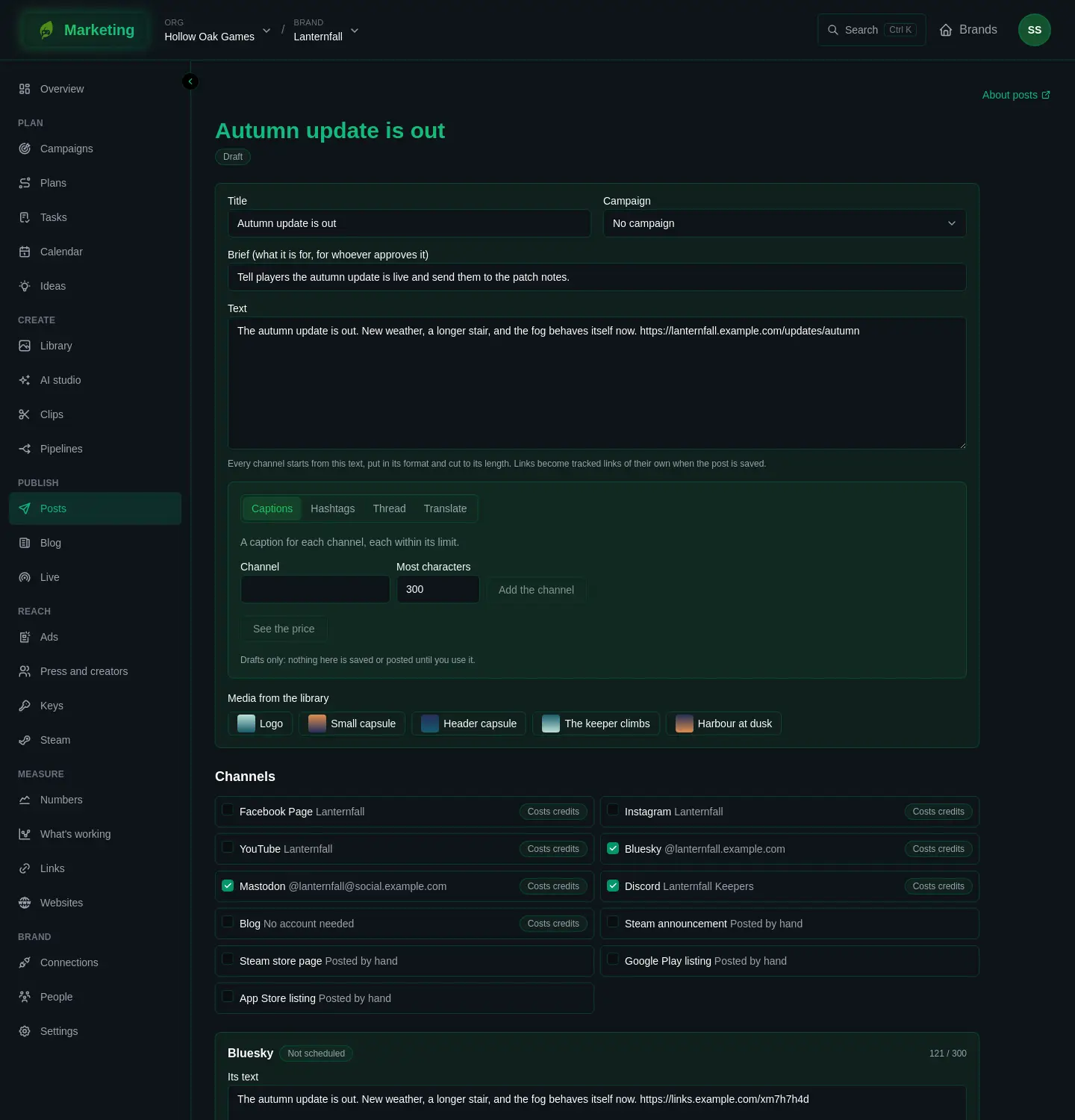
- Give it a Title. It is your own name for the post, and it shows in lists.
- Choose a Campaign if the post belongs to one. The campaign's name is added to the post's tracked links, so the clicks count under it. See Campaigns.
- Fill in the Brief (what it is for, for whoever approves it) if somebody else will review the post.
- Write the Text. Every channel starts from this text, put in its format and cut to its length. Links in it become tracked links of their own when the post is saved. See Links.
- Under Media from the library, press the pictures and videos to attach. Only files that are approved in the Library are offered.
- Choose the channels, as below.
- Press Save. The post now has a page of its own.
The Suggestions panel beside the text offers help from AI: choose what you want (Captions, Hashtags, Thread, Translate or Alt text), press See the price, then Draft it. A draft is only a draft. Use this puts it into your text. It costs credits, and the price is shown before you run it. See AI studio.
Choose the channels
Under Channels there is a tick box for each place the post can go.
- A network shows once the brand has a working account there, one line for each account. If you see no networks, connect an account on Connections.
- An account another brand lends carries a Shared label. See Sharing across brands.
- Costs credits means the channel is charged when the post goes out. A post is charged only once the network has taken it, so a version that fails costs nothing. See Credits.
- Blog is the brand's own blog and needs no account. See Blog.
- A brand with a game linked also gets channels you post by hand, such as a Steam announcement. They are marked Posted by hand. See Finishing a post by hand.
Each channel's version
Every channel you tick gets its own panel, with its status and a count such as 220 / 300. The count turns red when the text is too long.
- Its text starts as the post's text. Change it and that version no longer follows the post. Follow the post's text again puts it back.
- Some channels take choices of their own. YouTube asks for a Video title, Who can watch (Everyone, Anyone with the link or Only the channel), Made for children and a Thumbnail. Instagram offers Trial reel, a Reel shown first to people who do not follow the account. TikTok shows whose account it is, asks you to choose Who can see it, and keeps comments, duets and stitches off until you turn them on. If TikTok has not reviewed the app the account posts through, the video goes to the account's TikTok inbox instead, and the panel says so.
- Other channels show an Options (JSON) box. Reddit needs a subreddit and a title there, for example
{"subreddit": "lanternfall", "title": "Patch 1.2 is out"}, and the Blog needs a title the same way. The Networks page lists what each channel takes. - Finish it in the app on a phone is for a post that needs something only the network's own app can add, such as a sound. See Finishing a post by hand.
Approval
- Save the post. The next buttons stay greyed out until you do.
- An editor presses Send for approval. The post is now In review.
- An admin presses Approve. The post is now Approved.
An admin can also schedule a draft or a post in review straight away, which approves it too. Any change you save to an approved post sends it back to Draft, so what an admin approved is what goes out. If two people edit at once, the second save is refused and asks you to reload.
Scheduling
- Choose a time under Goes out at, then press Schedule. Or press Publish now; it goes within a minute or so.
- If something stops it, a banner lists every reason, such as a text over the limit, a channel with no account chosen, or an account that needs reconnecting. Put those right and try again.
- To change a scheduled post, press Cancel the schedule. This works only before any version has started going out. Then edit and schedule it again.
You can also move a scheduled post to another day on the Calendar.
If a network asks the app to wait, the post stays Scheduled and goes when the network allows. If the org has no credits to pay for it, it waits and is tried again, and the version says why. Other failures are tried again a few times before the version is marked Failed.
After it goes out
The post's status follows its versions.
| Status | Meaning |
|---|---|
| Draft | Not yet sent for approval. |
| In review | Waiting for an admin. |
| Approved | Approved, not yet scheduled. |
| Scheduled | Set to go out. |
| Publishing | Going out. |
| Published | Out on every channel. A version still waiting for a person keeps a post from getting here. |
| Partly failed | Out on some channels only. |
| Failed | Out on none. |
A version has its own status: Not scheduled, Scheduled, Posting, Waiting for a person, Published or Failed. A published version has See it where it went out. A failed one has Try again.
Under How it did, numbers are taken an hour, a day, a week and a month after each version went out. See Numbers.
Throw away removes a post that was never scheduled.
The list of posts
Posts lists the brand's posts, the latest changed first, with their channels and time. Show narrows it to In review, Scheduled, Published or Failed. Drafts, approved posts and partly failed ones appear under All.
If it goes wrong
Post problems explains the messages a post gives and what to do about each.