After the stream
When a stream ends, the Live page keeps what is left of it: how it did, its recording, its markers, and links to where it went out. From there you can cut clips and turn them into posts.
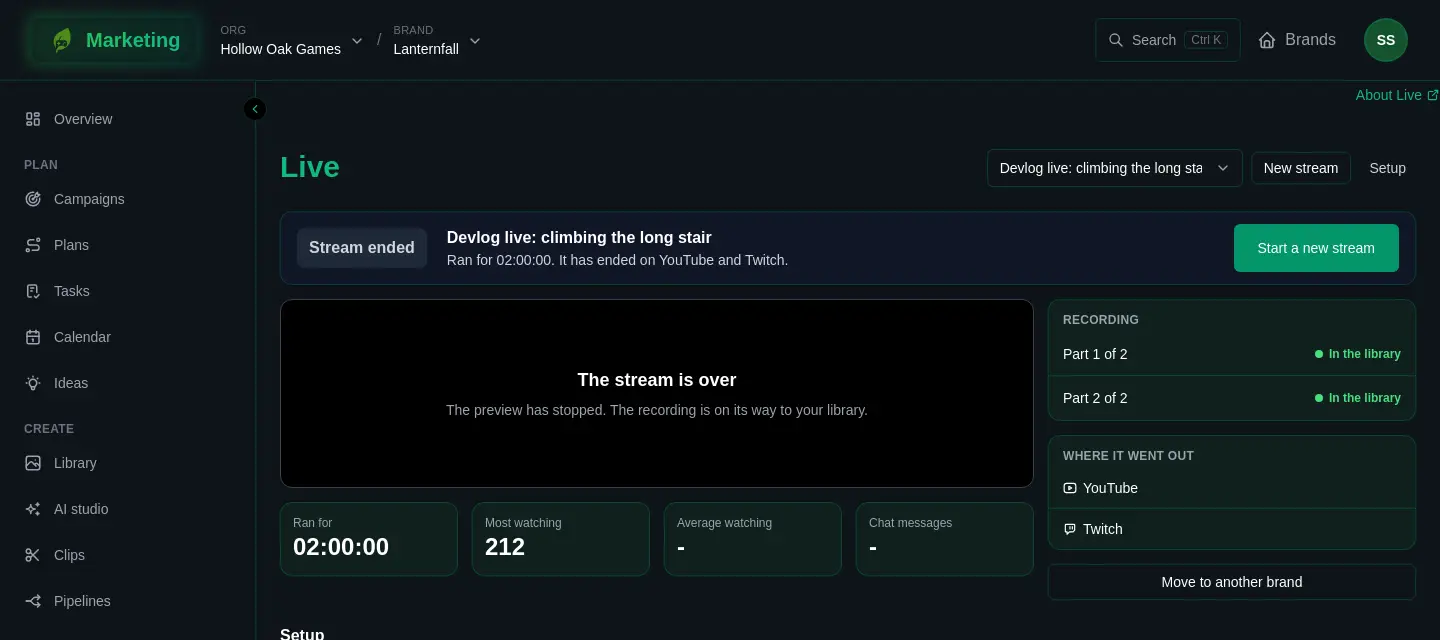
Find an old stream in the Live page's list of streams, or from the Calendar.
How it did
The page shows Ran for, Most watching, Average watching and Chat messages, and says which channels it ended on. A stream that ended before it went out says It never went live.
The recording
Each stream that reaches the relay is recorded, whichever channels it went to. The recording starts when OBS starts sending, so it includes your rehearsal before you went live.
A long stream arrives in parts, each shown under Recording:
- On its way: it is still arriving.
- In the library: it is in the brand's Library, named after the stream.
- Lost from our copy (the platforms keep theirs): that part did not reach the library, and the reason follows.
YouTube and Twitch each keep their own archive of the broadcast, separate from this one. Find them through Where it went out, where Control room and Public page open each platform's own pages.
From markers to clips
Every Clip that and Add marker press is kept. When a stream has any, the page counts how many are ready to clip, and Open clips takes you to its timeline. You can also open Clips in the sidebar and choose the stream from Recordings.
The timeline draws viewers, chat and markers over the recording, so the moments worth cutting stand out. Suggested moments are only suggestions: nothing is cut until you choose to. Cutting takes the Editor role by default, and costs credits. The page shows the price before you press Cut the clip. See Clips for the whole of it.
You can ask for a clip before the recording has finished arriving. It is cut once the recording is in.
Twitch takes no uploads from an app, so clips cannot be sent to Twitch from here. The clip Clip that asked Twitch for stays on Twitch. Edited clips can go to YouTube as new videos.
Letting a pipeline do it
A pipeline can start from a stream, so the first drafts are waiting for you. These templates do that:
- Clip that to Shorts: each Clip that becomes a captioned vertical clip with its post written, ready to approve.
- Best moments: when a stream ends, its best suggested moments become clips, and a person picks the ones worth a post.
- Moments from what was said: for streams too small for chat to say much, AI listens and picks the moments.
See Pipeline templates for what each needs and costs.
A band's show
A stream started from an Ensemblis show does more by itself. Each song becomes a marker as it starts. When the stream ends, YouTube's archive gets chapters from those markers, if there are enough of them. Every band brand also has the Song clips from a show pipeline, which leaves a draft clip of each song in the library and skips covers.
Moving it to another brand
If a stream ran on the wrong brand, Move to another brand moves it to another brand in your org. It takes the Admin role by default on this brand, and at least Editor on the other.
The page shows what would move and what stays before you confirm:
- What moves: the stream with its chat, viewers and markers, its recordings and clips with their files, and its figures for those days.
- What stays here: what it cost in credits, pipeline runs and what they made, and published posts.
It also leaves its campaign. Anything still in progress blocks the move, and the page says what, for example a recording that is still uploading.
If it goes wrong
If a recording is missing or the stream ended by itself, see Live problems.