Steam insights
These are the tools in the Steam toolkit that tell you how a game is doing on Steam and help you plan around it: reviews, a wishlist forecast, which languages to add, comparable games, prices and discounts, and curators. They need a linked game. Anyone on the brand can read them, and an editor or an admin can change things.
Where a tool reads Steam's store pages it needs the game's Steam app id, entered on the toolkit's front page. Where it ends in a change to make in Steamworks, you make it there and mark it done here. Paid actions show their price in credits first and run only when you press Go ahead.
Reviews
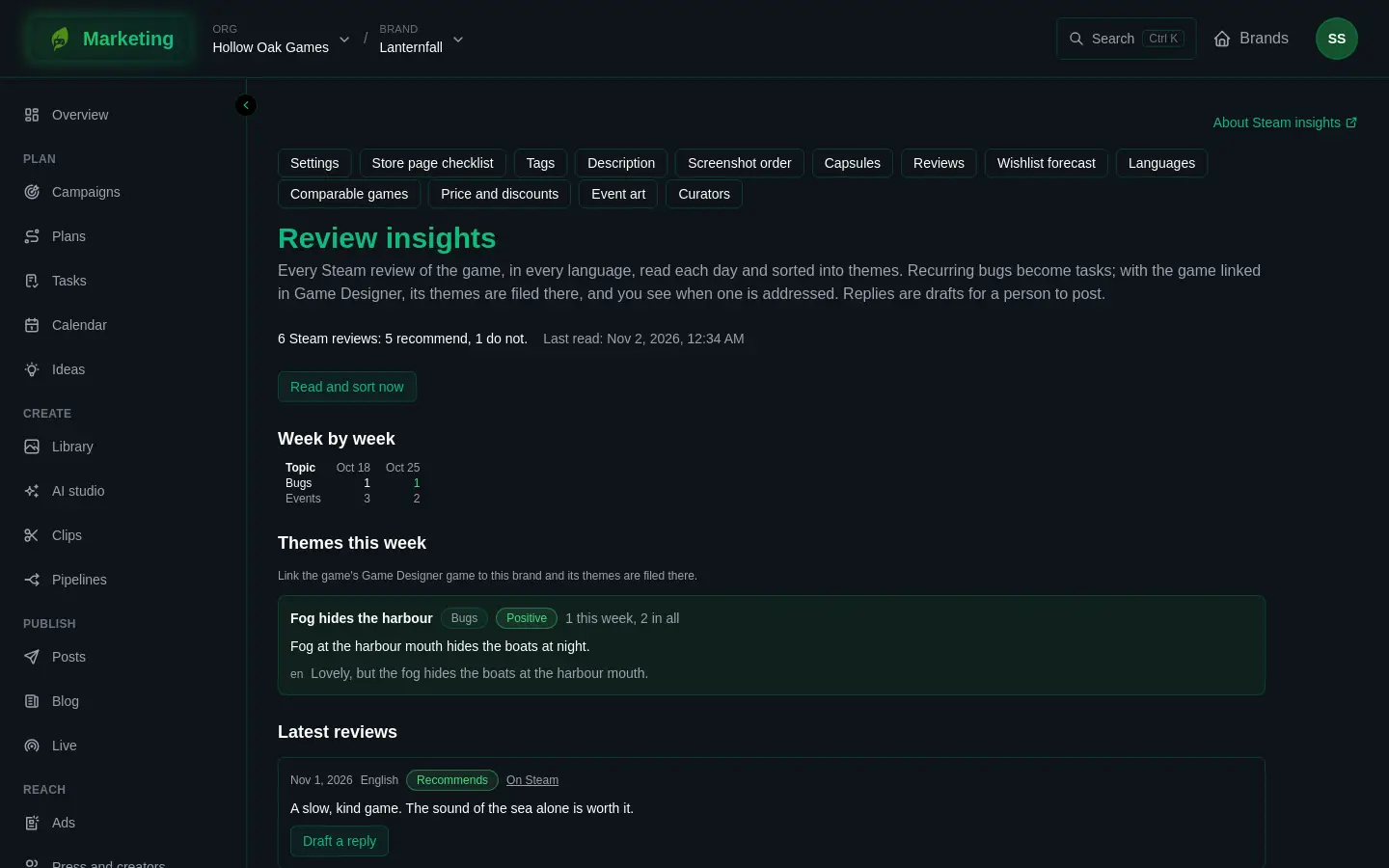
Reviews (the page is titled Review insights) reads every Steam review of the game, in every language, each day, and sorts them into themes such as bugs, performance, balance, price and praise.
- At the top: how many reviews recommend the game and how many do not, when they were Last read, and how many are waiting to be sorted. Press Read and sort now to do it straight away (paid).
- Week by week is a table of reviews per topic for the last weeks. Red and green cells mean the mood that week was clearly negative or positive. An Events row counts the events on the brand's timeline in those weeks, so you can see whether a patch or a sale shows up.
- Themes this week groups reviews. Each theme shows a topic, whether it is Negative, Positive or Mixed, how many reviews this week and in all, a short summary and a few excerpts, each marked with its language. A recurring bug becomes a task, marked A task.
- If the game is also linked in Game Designer, themes are filed there and the badge shows where each stands, for example Filed in Game Designer or Addressed. Game Designer is not open to everybody yet, so without it you see no such badges.
- Latest reviews lists recent ones with a link On Steam. Draft a reply (paid) writes a reply you can edit and copy. It is a draft: post it yourself, as the developer, on Steam.
Wishlist forecast
Wishlist forecast shows Outstanding wishlists, Net a day, last four weeks and Deletes a day, from Steam's wishlist report. Everything past today is an estimate and is labelled Estimate.
- Enter a Goal, outstanding wishlists and a date under By, and The goal says On track or Behind, what pace it needs, and where today's pace lands.
- Enter a Launch day and Launch week gives a rough range of sales from common industry ratios. The page itself says it is an estimate and not a promise.
If it says there are no wishlist figures yet, the game's Steam financial key is not connected: see Connect Steam financial.
Languages
Languages (the Localisation advisor) tells you which languages to translate the store page, and the game, into, from where the wishlists come from. Choose the last 30 days, 90 days or a year. The table lists each language with its wishlists, its share, advice (The store page or The store page and the game), and Store page has it where the store page already does. Some rows say From countries, where the language was worked out from the country. Without wishlists by language or country, it says so.
The languages the store page is in are set on the front page; the description tool writes and translates for them.
Comparable games
Comparable games is a list of other Steam games to watch beside yours: their price, discount, reviews, release date and top tags, read each day from Steam's public store data. The tags tool reads their tags too.
- Enter a Steam app id to watch and press Watch.
- Press Read them now (paid) to refresh them straight away.
- Remove one with its bin button, Stop watching.
Above the table, your own game's review count, positive share and planned price are shown for comparison.
Price and discounts
Price and discounts plans the price in each currency and discounts against Steam's seasonal sales. Nothing changes on Steam until you do it in Steamworks.
Prices
- Enter the Base price, US dollars.
- If suggestions are available, press Fill in Steam's suggested prices. If none are, regional conversions have not been set up for you yet, and you enter each currency yourself: type a code such as EUR under Currency code and press Add a currency.
- A currency can warn that Steam charges it in larger steps.
- Press Save the plan, set the prices in Steamworks, then press Prices set in Steamworks. If a discount is running, the page says the base price cannot change until it is over.
Discounts
- Choose the Kind: Our own, Launch discount or In a seasonal sale. Enter Percent off and the dates, or choose the Sale.
- Press Check and plan. Every discount is checked against Valve's rules before it is kept, and the page lists what is wrong, such as the size of the discount, its length, how close it is to another discount, or its place after a release or a price rise.
- A good one is listed as Planned. Set it in Steamworks, then press Set in Steamworks. The discount then carries that badge and joins the brand's timeline on its own days. Cancel it removes a plan.
Steamworks has the last word on Valve's rules.
Curators
Curators tracks Steam curators you ask for coverage through Curator Connect in Steamworks. You ask there yourself, and track each request here by hand.
- Enter the Curator, Their curator page on Steam and optionally Followers, and press Add.
- For each, set Where the request stands: To ask, Key sent, Accepted, Reviewed or Declined. Add the review's address and notes, and press Save.
Each curator is also a contact in Press and creators. A badge, Not in Press and creators yet, shows when one is not.
If it goes wrong
- Give the game its Steam app id on the Steam page first. Enter it on the front page.
- No wishlist figures yet. Connect the Steam financial key.
- A paid action fails. It says so and charges nothing. See Steam toolkit.