Plans
A plan is a schedule for something big, such as a game launch or an album release. It has phases, milestones with dates, goals on the brand's numbers, and the tasks that get you there. You can start from a template that already has the usual steps, or from a blank page.
Open Plans in the Plan group of the sidebar. Everybody on the brand can read plans. An Editor or an Admin can make and change them (see People and roles).
Start a plan
Under New plan, choose From a template or Blank.
From a template
- Choose a Template. The line under the menu says how many phases, milestones and tasks it makes, and how many days it runs before and after day zero.
- Under Day zero, pick the day the template's dates count from: launch day for a launch, release day for a release, the first show for a tour.
- Give it a Name (optional). Left empty, it takes the template's name.
- Press Make the plan. The plan opens.
Which templates you see depends on what the brand markets (see Brands and kits):
- Indie launch is there for every brand. It runs from announcing the game about a year out to the weeks after launch.
- Steam launch and Mobile launch come with a linked game.
- Release and Tour come with a linked band.
Every date in the plan is counted from the day zero you chose. A task or milestone that falls before day zero is dated that many days earlier.
A template also sets goals on the brand's numbers. If the brand does not report one of those numbers yet, that goal is left out and the page tells you which: "The plan was made, but its goals on ... were left out: the brand does not report those numbers yet." The rest of the plan is made. Connect the account or link the game, then add the goal by hand (see below).
Blank
Give it a Name, and if you like What it is for (optional), Starts (optional) and Ends (optional). Press Make the plan.
The list of plans shows, for each, its dates, how many milestones and tasks are done, and the next milestone. Press Open to go into one.
Work in a plan
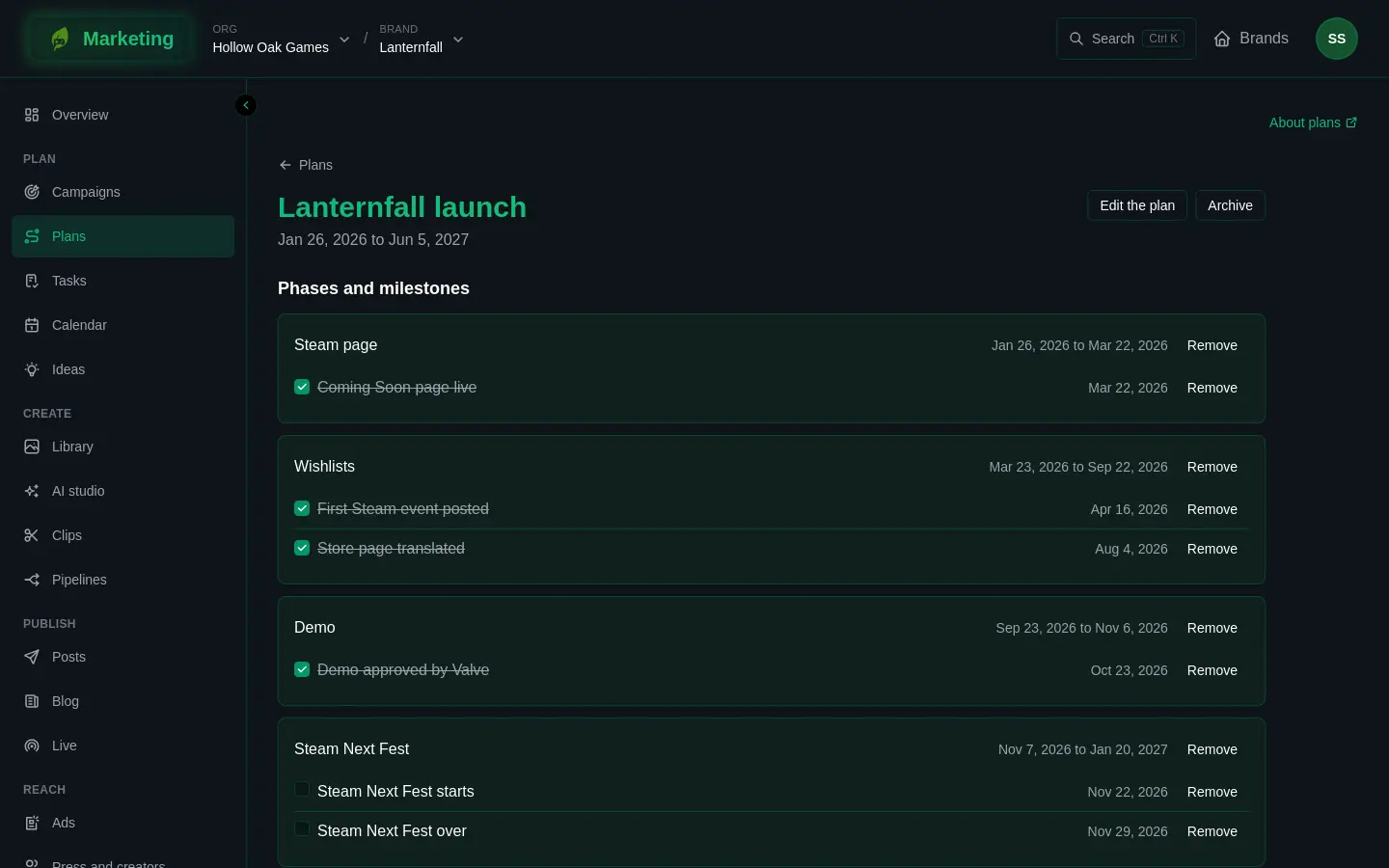
Phases and milestones. A phase runs from its start until the day before the next phase starts. Tick a milestone's box when it is reached. Remove takes a milestone or a phase out. There is no way to change a milestone's or a phase's date in place: remove it and add it again. To add one, fill in New phase with a start date and press Add the phase, or fill in New milestone (What is reached, By, Phase) and press Add the milestone.
Goals. Each goal is a target on one of the brand's figures by a day, drawn against the straight line from its start to its target. Under New goal, choose the Metric, what it is Of (the default is All of it), the Target, Counted from and By, and Measured as:
- Added up over the days suits things you count, such as clicks.
- The last day's value suits a level, such as followers.
- As the metric suggests picks one for you.
Press Set the goal. Each goal carries a badge: Not started, No numbers yet, On pace, Behind, Met or Missed. Unless it is met, the goal also says what each remaining day needs, and what the recent days managed. If the brand reports no numbers a goal can be set on, the page says to connect a source first. See Numbers.
Tasks. Tasks under a plan are grouped by the milestone they lead to. Use New task (What to do, Leads to, Due (optional), For (optional)) and Add the task. Mark them Done, Set aside or Reopen. The same tasks appear on Tasks.
Outside dates. If dates that fall inside the plan are on GreenMind's list (festivals, sales, deadlines, showcases), they are shown with a badge for the kind, and Estimated where the date has not been announced yet. Press Add as a milestone to put one in the plan. Which dates you see depends on the brand's kits. A link, Where it is published, goes to the source where there is one.
Edit the plan changes its name, description and dates. Save with Save the plan.
Archive a plan
Archive puts a plan away. It is shown as it was, nothing changes it until you press Restore, and its dates leave the Calendar. The list on Plans hides archived plans unless you turn on Show archived plans.
What shows on the Calendar
A live plan puts each milestone, and the day each goal is due, on the Calendar. Select one to open its plan.
If something does not work
- A template's goals are missing. The brand does not report that number yet. See above.
- You cannot change a plan. It is archived, or your role on the brand is Viewer or Commenter.