Brand settings
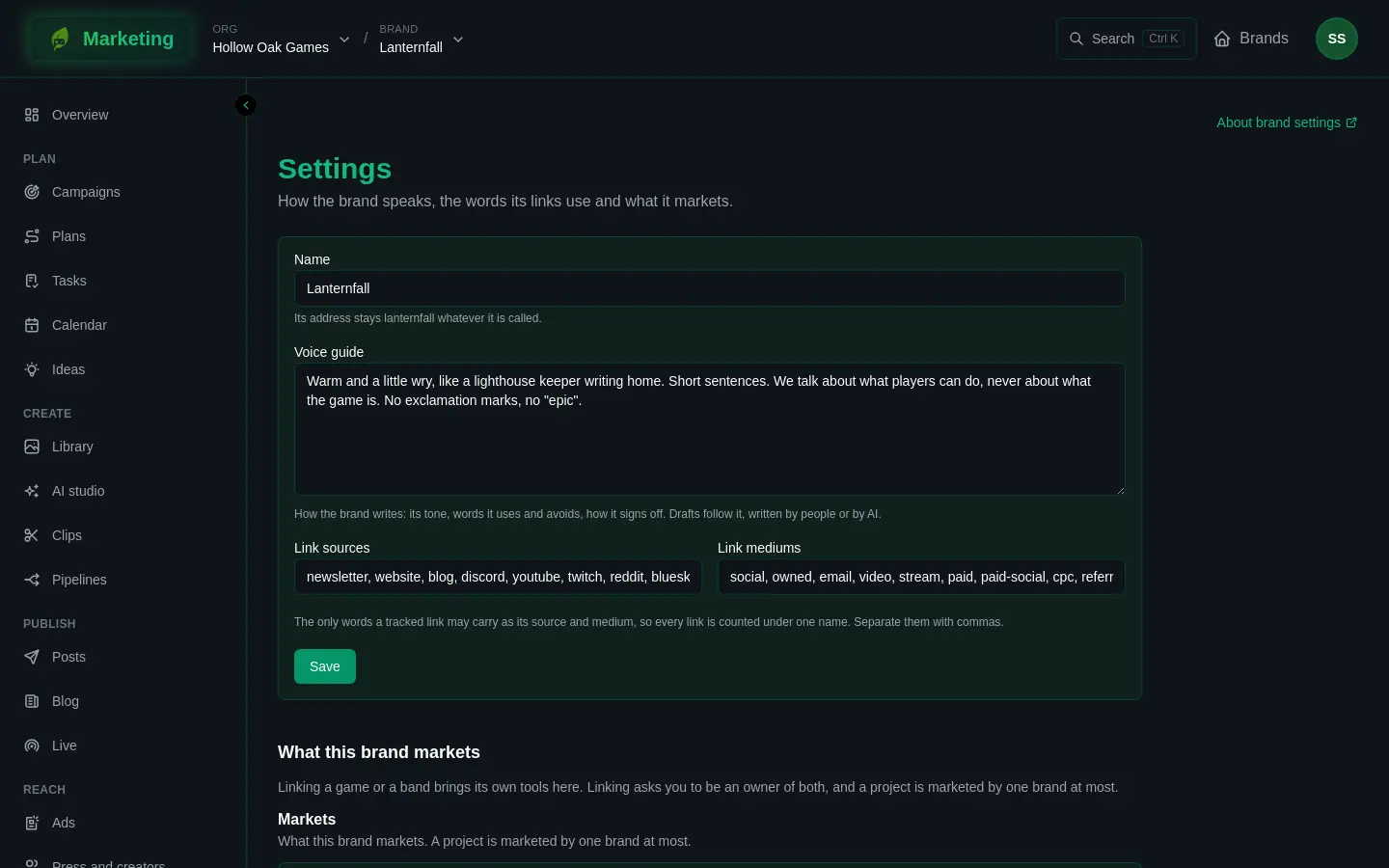
A brand's settings hold its name, how it writes, the words its tracked links use, and which game or band it markets. Open Settings under Brand in the sidebar. Accounts are not here: a brand connects those on its Connections page.
Who can change what
- Editors change the voice guide and the link words.
- Admins can also rename the brand.
- Everyone else sees the page and cannot save.
Linking a game or a band has its own rule, below.
Name
The Name is how the brand is called everywhere. Changing it does not change its address, which stays as it was made. The page shows it under the field: "Its address stays" followed by the brand's key.
Voice guide
The Voice guide says how the brand writes: its tone, words it uses and avoids, how it signs off. Drafts follow it, whether a person writes them or AI does. Write it as you would brief a new writer, then press Save.
Link sources and mediums
Every link in a post is made into a tracked link that is counted under a source (where the click came from) and a medium (what kind of place it was). Link sources and Link mediums are the only words a tracked link may carry for those two, so every link is counted under one name instead of three spellings of it.
- Separate words with commas.
- Words are lower-case letters, digits, dots, hyphens and underscores. The page shows a message beside any word that does not fit, and Save stays off until it does.
Each channel files its links under its own source and medium words. If you take one of them out of the lists, a post with links for that channel is refused with "Check the channel's source and medium are words of the brand's vocabulary." Put the word back to carry on. See Links for how the words show up in your numbers.
What this brand markets
A brand can market a game or a band. Linking one brings that project's own tools into the brand: a linked game adds the Steam area and channels you post to by hand, and a linked band brings its own plans, pipeline templates and links to streaming services. See Brands and kits.
- Under What this brand markets, find Link a project.
- Open Choose a project, pick one of the org's projects and press Link. Only projects you can link are offered.
Linking asks you to be an owner of both the brand and the project, and a project is marketed by one brand at most. The project then appears in the list with its kind of project beside it.
Unlink removes the link, after you confirm. Whatever the link managed becomes editable where it is, and stays as it is now.