Calendar
The calendar puts everything the brand has coming up, or has just done, on one set of days: posts, streams, plan dates, festivals and, for a brand with a band, its shows. Use it to see where a week is crowded or empty, and to move a scheduled post to another day.
Open Calendar in the Plan group of the sidebar. Everybody who can see the brand can read it.
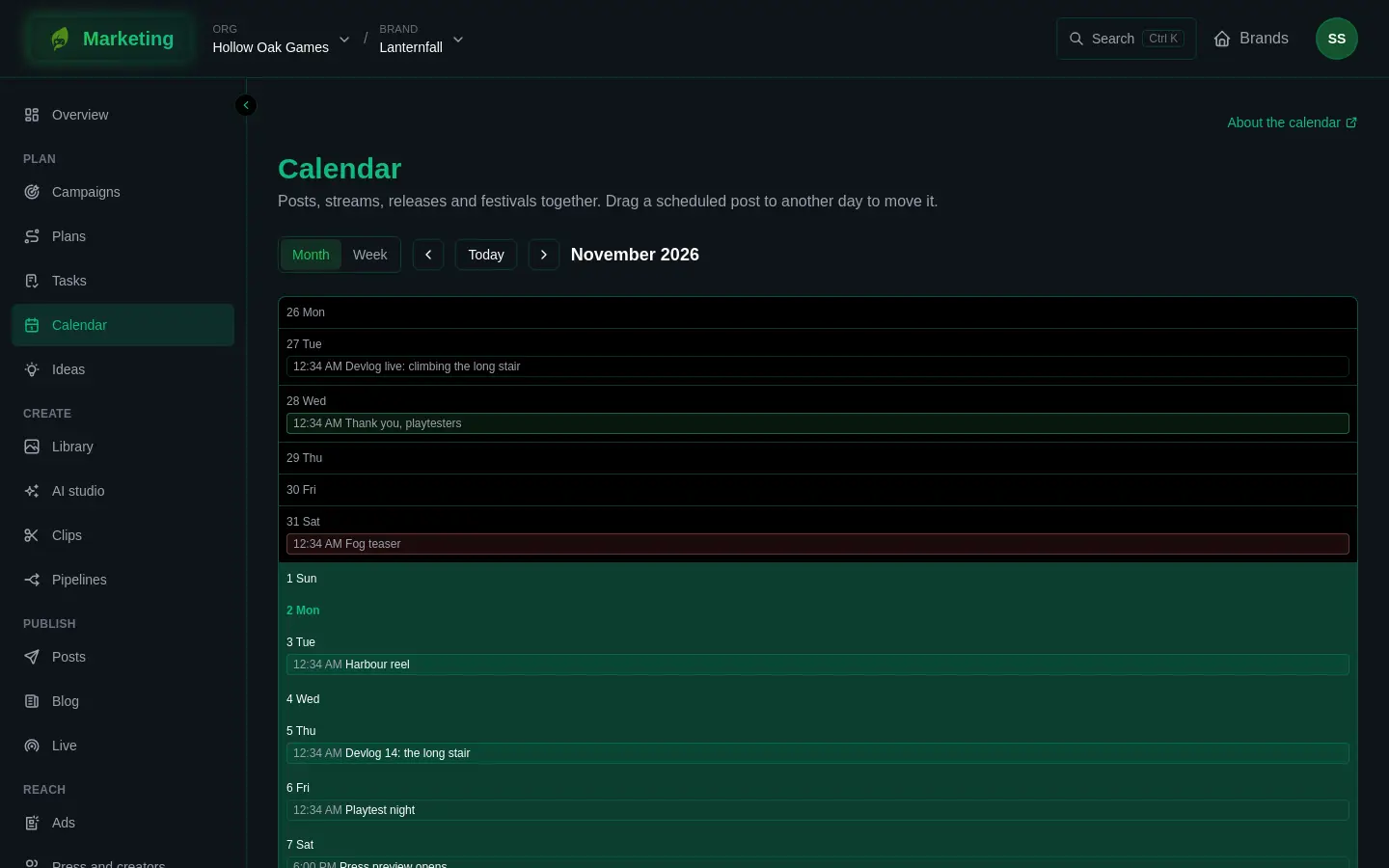
Find your way around
- View switches between Month and Week. A month is shown in whole weeks, and a week starts on Monday.
- Earlier and Later step back and forward by a month or a week. Today brings you back to now.
- Each day lists its entries in time order, with the time first and the title after it. Select an entry to open what it is: a post opens in Posts, a stream in Live, a plan date in its plan.
What appears on it
- Posts. Every post that has a scheduled time, at that time. A draft with no time set is not on the calendar. A post is tinted by where it has got to: scheduled, published, failed, or partly failed.
- Streams. Each stream on the day it is scheduled for, or on the day it went live. A stream that was called off before it began is left out.
- Plan dates. The milestones of every plan that is not archived, and the day each goal is due. See Plans.
- Festivals, sales and deadlines. Dates GreenMind keeps a list of, shown to the brands they suit. A date nobody has announced yet is marked as estimated.
- For a brand with a linked game: the brand's planned and confirmed Steam discounts. See Steam toolkit.
- For a brand with a linked band: the band's shows, booked or played, each one linking back to the show. A band's releases are not a separate feed: they appear through the milestones of a plan made from the Release template.
If an entry you expect is missing, look at the thing behind it. A post with no time, an archived plan, or a stream that never began will not show.
Move a scheduled post
You can drag a post to another day.
- Find the post. It has to be scheduled and not yet started going out.
- Drag it to the day you want. It keeps its time of day.
The post is scheduled again for the new time, and any hand-posting task it had is replaced by one for the new time. See Tasks.
Some things to know:
- Only somebody who may publish on the brand can move a post: an Admin by default. For everybody else the posts do not drag. See People and roles.
- A post that has already started going out, or has gone out, cannot be moved. The page says "Only a post that has not started going out can be moved."
- You cannot move a post to a time that has passed: "Choose a time that has not passed."
- If a move is refused, the page shows the reason, or "The post could not be moved.", and the post stays where it was.
- Dragging needs a mouse or a trackpad. To move a post some other way, open it and change its schedule there. See Posts.
If something does not work
- A post I scheduled is on the wrong day. The calendar shows days in your browser's time zone. Check the time in the post itself.
- A day you expected to be full is empty. Check the month and the view, then see the list above of what the calendar reads.