Connections
A connection is the brand's access to an account outside GreenMind: a Facebook Page to post to, a YouTube channel, a Twitch channel to stream on, an ad account, a mailbox. You make it once, and then the brand's posts, streams and reports use it.
A brand connects on its own Connections page, under Brand in the sidebar.
Who can connect
An admin of the brand connects its accounts and channels. Everyone else sees that sentence in place of the list. The Assistants section lower down is open to everyone on the brand. See Assistants.
Whose a connection is
- The brand's own. Made on this page, used by this brand, and it can be lent to other brands of the org. See Sharing across brands.
- The org's. Made by an org admin on the org's own Connections page, on your GreenMind account. A service connected there shows here as Connected at the org, with Manage it at the org to change it. It does not need connecting again. A brand's own connection to the same service beats the org's.
- Set up in the publishing console. A few services are set up there instead, and their row says Set up in the publishing console.
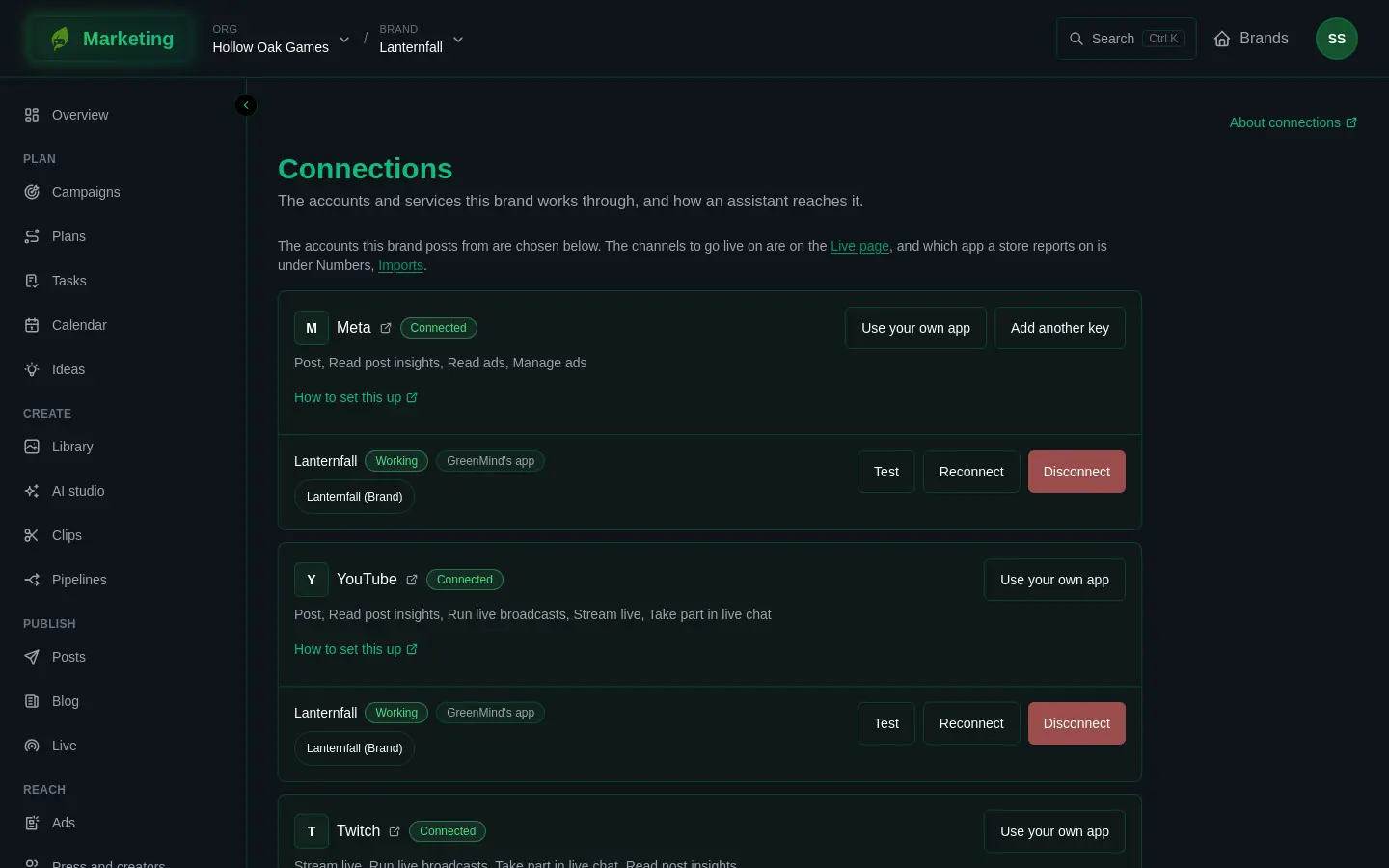
Connect an account
Every service has a row. It shows the service's name, a label for where it stands (Not connected, Connected, Needs reconnecting, Connected at the org or Needs reconnecting at the org), what it is used for, and How to set this up, which opens that network's guide. A row offers some of these buttons:
- Connect signs you in to the network through GreenMind's own app there. It appears only where GreenMind's app is open to your org, which is not the case for most networks.
- Use your own app connects through a developer app that you make at the network. The network then sees your org asking, and the limits and any review are yours. This is the usual way.
- Add a key takes a key or token you make at the network. The key is checked with the network before it is saved, and it is never shown again.
Once a service is connected, the buttons read Connect another and Add another key, for a second account.
Your own app
For most networks, Use your own app opens a guide with the steps in order, and the exact Redirect URL and Scopes to copy into the network's developer page. You never type those. Then:
- Paste the app's Client ID and Client secret.
- Press Test these credentials to check the network knows them before anybody signs in.
- Press Connect, sign in to the network and allow access.
Some networks also show a box, Also read the numbers of what is posted. Tick it if you want the figures for your posts, knowing the network then asks for more access. Without it, the connection is for posting only.
Networks that take a key instead of a sign-in show a Key, token or address box and end with Test and save.
The guides, one for each network:
- Social: Meta (Facebook and Instagram), Threads, YouTube, Twitch, TikTok, Reddit, X, Bluesky, Mastodon, LinkedIn and Discord.
- Ads: Google Ads, Reddit Ads and TikTok Ads.
- Mail: Gmail and Microsoft 365.
- Store figures: Steam sales and wishlists, Google Play and App Store Connect.
Before the network approves your app
Some networks review a developer app before it may do everything. The guide then has a section, Before the network approves your app, with Still to pass and Works already. Where a network allows it, Post by hand instead connects the account without a review: each post is prepared in Marketing and the network's own app is opened ready to finish it. Such a connection is labelled Finished in its app. See Finishing a post by hand.
Test, Reconnect and Disconnect
Each connection shows its account, a status (Working, Needs reconnecting or Disconnected), how it was made (GreenMind's app, Your own or Finished in its app) and where it is used. Some also show a Webhook address and a Verify token to give to the network.
- Test asks the network now whether the connection works, and shows what it answered.
- Reconnect goes the way the connection was made: through GreenMind's app, your own app (a blank field keeps what was saved), or a new key. Use it when a connection needs reconnecting.
- Disconnect asks you to confirm. It removes access at the network where that can be done, and erases it here. Everything using the connection stops. If the network cannot be told, the page says to remove the access in the network's own settings too.
Every night each connection is checked and its sign-in refreshed. One the network stops accepting is marked Needs reconnecting. See Connection problems.
Posting
Under Posting, choose the accounts the brand posts from, its own or its org's. The post editor offers the brand's working accounts, and a pipeline's posts go out from the one in use on each network.
- Press Use a connection.
- Choose the Connection.
- For Meta (Facebook and Instagram), fill in the Facebook Page ID. For LinkedIn, fill in the Company page ID. Those two cannot post without it.
- Press Use it.
Stop using ends only that use. The connection stays.
Other places that choose an account
The channels to go live on are chosen on the Live page, and which app a store reports on is chosen under Numbers imports. A connection made at the org shows Choose it for Live, Choose it for posts and Choose it for numbers to take you there.