Links
Every link the brand shares goes through a short link of its own, so each post, poster and video is counted on its own. Links tells you which of them people actually follow. It also makes QR codes, a link-in-bio page, and for a band a page that lists a release on every streaming service.
Open Links in the sidebar, under Measure. Anyone who can see the brand can read the list and download QR codes. Making and switching links needs an Editor or above.
Short links have an address of their own, which this page calls "your short link". A link looks like example.com/aB3dE9kp, with the address of your own short links in place of example.com.
Before you make one
A link carries three tracking words: a source (where it is shared, such as bluesky), a medium (the kind of place, such as social or email) and, if you want, a campaign. The brand allows only a fixed list of sources and mediums, so every link is counted under one name and not three spellings.
Set the lists on the brand's Settings page, in Link sources and Link mediums, separated by commas. Words are lower-case letters, digits, dots, hyphens and underscores. Until both lists have words, the page says to add some first.
A campaign comes from the brand's own campaigns, and must not be archived. See Campaigns.
Make a link
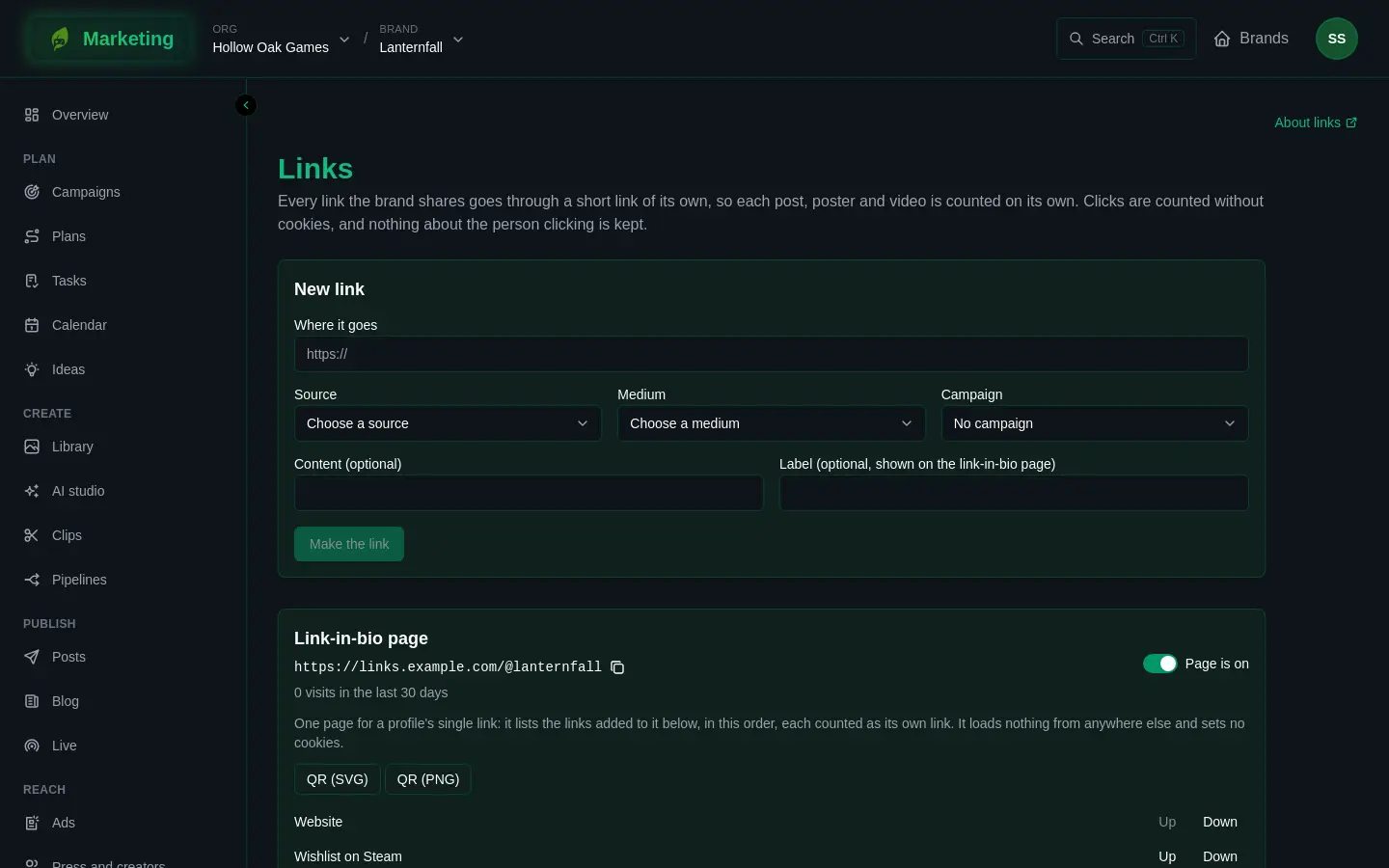
- Under New link, paste the address into Where it goes.
- Choose a Source and a Medium.
- Choose a Campaign, or No campaign.
- Add Content (optional) if you have several links in one place and want to tell them apart, such as
trailer-a. Add a Label (optional, shown on the link-in-bio page) if you want a name for it. - Press Make the link.
The page shows The link is ready to share: with your short link and a button to copy it.
Good to know:
- The address must be an
httporhttpsaddress, with no user name or password in it. It cannot be one of your own short links. - Any tracking words already on the address are removed and replaced with the ones you chose.
- A link never changes after it is made, because it may already be printed or posted. To go somewhere else, make a new one.
Links in posts
You rarely need the form for posts. When you save a post, every address in its text becomes a tracked link of its own, using the channel's source and medium and the post's campaign, so each network is measured separately. Addresses that already carry tracking words are left as they are. If a post will not save because of its links, check that Link sources and Link mediums include the words the channel uses. See Posts.
Read the list
All links lists every link, with its label or address, your short link with a copy button, where it goes and its tracking words, and the clicks it had in the last days the page names. A link's badge says Off if it is switched off or On the link-in-bio page if it is listed there.
Clicks are counted without cookies, and nothing about the person clicking is kept. Visits from software, and browsers fetching a page ahead of a click, are not counted. A click appears in the list within a few minutes. Clicks also feed Numbers as Link clicks, by link and by campaign. Numbers also has an estimate of unique visitors, for each link only and never added up across links, because one person can follow several.
Switch a link off
Switch off stops a link at once. Anyone following it sees a page saying Link not found. That includes a QR code already printed from it, so think before you switch off a link that is out in the world. Switch on brings it back.
QR codes
QR (SVG) and QR (PNG) download a QR code of the link's short address. Use SVG for print.
The link-in-bio page
One page for a profile's single link: it lists the links you add to it, in order, each counted as its own link. It loads nothing from anywhere else and sets no cookies.
- Switch Page is on to turn it on. Off, the page answers Link not found.
- Press Add to the link-in-bio page on a link. Take off the link-in-bio page removes it.
- Use Up and Down to change the order. A link's label is its name on the page, or its address if it has none.
- The page has its own short link and QR codes, and its visits are counted.
Store-correct links
For a brand that markets a game, a link to the game's store page carries its tracking words the way that store reads them, so the store's own reports can tell where installs came from:
- Steam store page: the plain tracking words. Steamworks' UTM report counts them; import that report as Steam UTM analytics (see Importing numbers).
- Google Play listing: the tracking words packed in the way Play expects, shortened if needed so the source, medium and campaign survive.
- App Store listing: a campaign token. This only works if the game has its App Store Connect provider token in its configuration in the publishing console, in the production environment. Without it the link still goes to the App Store and still counts on your short link, but the App Store does not tell the campaign apart. Ask whoever looks after the game's configuration.
Your own short link counts every click whichever store it goes to.
Release pages
A brand that markets a band gets a Release page form, for Editors and above. It makes one short address that lists a release on each streaming service, each through a tracked link of its own.
- Choose the Band, if the brand markets more than one.
- Give the Release title.
- Under Its address on each streaming service, one a line, paste the release's address on each service.
- Choose a Source and Medium.
- Press Save the release page.
The page recognises Spotify, Apple Music, YouTube Music, Bandcamp, Deezer and TIDAL. Anything else is refused with a message listing them, and at least one address is needed. Saving the same title again updates its page: a service you no longer list is switched off, never deleted. Only Bandcamp reads tracking words, so the other services' addresses go out clean and are counted by your short link alone.
If it goes wrong
Clicks that do not show, a link that says Link not found, or a form that will not save are covered in Number problems.