Docks and overlays
Links from the Live page put your stream's chat and viewers inside OBS, for you to read, or on the stream itself, for viewers to see. A dock is a panel in OBS's own window. An overlay is a see-through page you lay over your scene.
Getting the links
- Open Live, and in the Setup area open Add chat and viewers to OBS or your stream.
- Press Get a link. Making links takes the Editor role by default.
- Give the set a name if you like, such as whose computer it is on. It starts as the day it was made.
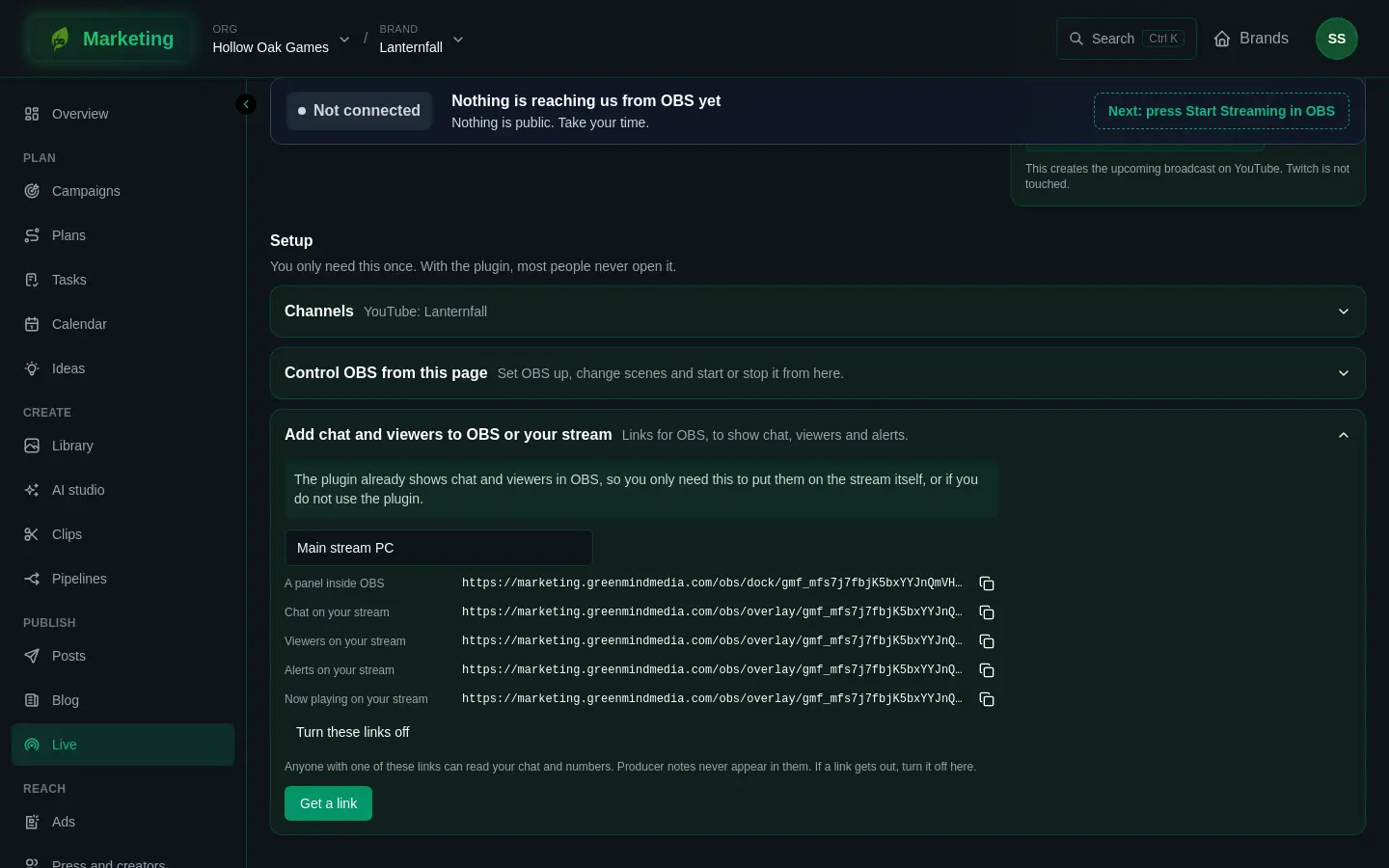
Each set has five addresses:
| Link | What it is |
|---|---|
| A panel inside OBS | A dock with viewers, the run sheet, merged chat and health. |
| Chat on your stream | The latest chat messages, each fading after about half a minute. |
| Viewers on your stream | The number watching, on all channels together. |
| Alerts on your stream | Follows, subscriptions, gifts, raids, cheers, Super Chats, Super Stickers and memberships, one at a time for a few seconds. |
| Now playing on your stream | The song playing and the one up next, for a band's stream started from an Ensemblis show. |
The links belong to the brand, not to one stream, so you add them to OBS once and they follow every stream. They show the stream that is live, or else one OBS is sending, or else the next one coming up.
Adding the panel to OBS
- Copy the A panel inside OBS address.
- In OBS, open Docks, then Custom Browser Docks.
- Give it a name, paste the address, and apply.
The panel shows the stream's title and state with Viewers, Run sheet, Chat and Health. It only reads: you cannot reply or clip from it, and it shows no credits. Health is where warnings appear, such as low bitrate, a channel that has stopped taking the stream, or less than half an hour of credit left, so keep it where you can see it.
If nothing is going it says No stream is going right now.
Adding an overlay to a scene
- Copy the overlay's address.
- In OBS, select the scene, add a Browser source, and paste the address as its URL.
- Size and place the source on your canvas.
The page behind an overlay is see-through, so only its text and panels show over your scene. Chat lines build up from the bottom of the source, and alerts appear in its middle.
An overlay stays empty until it has something to show. Alerts only cover what arrives while the overlay is open, so reloading it mid-stream does not replay old ones. Removed chat messages leave the chat overlay.
Keeping the links private
Anyone with one of these addresses can read your chat and numbers. No sign-in is needed, because OBS has no way to sign in, so the address itself is the key. It can do nothing but read: it holds no stream key, and it never shows producer notes or credits.
Addresses end up in OBS's scene files and in every browser source, and everybody on the brand can see them on the Live page. So:
- Do not show them on stream or paste them in chat, and take care when you share an OBS scene collection.
- Make a set for each computer, so you can turn one off without touching the others.
If a link gets out, press Turn these links off. That stops every copy of that set's addresses at once, and it takes the Editor role by default. Press Get a link for a new set, and put the new addresses into OBS. A panel with a turned-off link stays on Loading the stream, and its overlays show nothing.
More on what can go wrong is in Live problems.