Press and creators
Press and creators is the brand's list of the creators and outlets it works with: what you sent them, the keys they asked for and the coverage they made. You write to them from the brand's own mailbox. Nobody is mailed in bulk unless they agreed to it.
Contacts are personal data, so this area is for editors and admins. A viewer or commenter does not see it by default.
Parts of the page
The page has five parts, chosen at the top: Contacts, Key requests, Coverage, Templates and Settings.
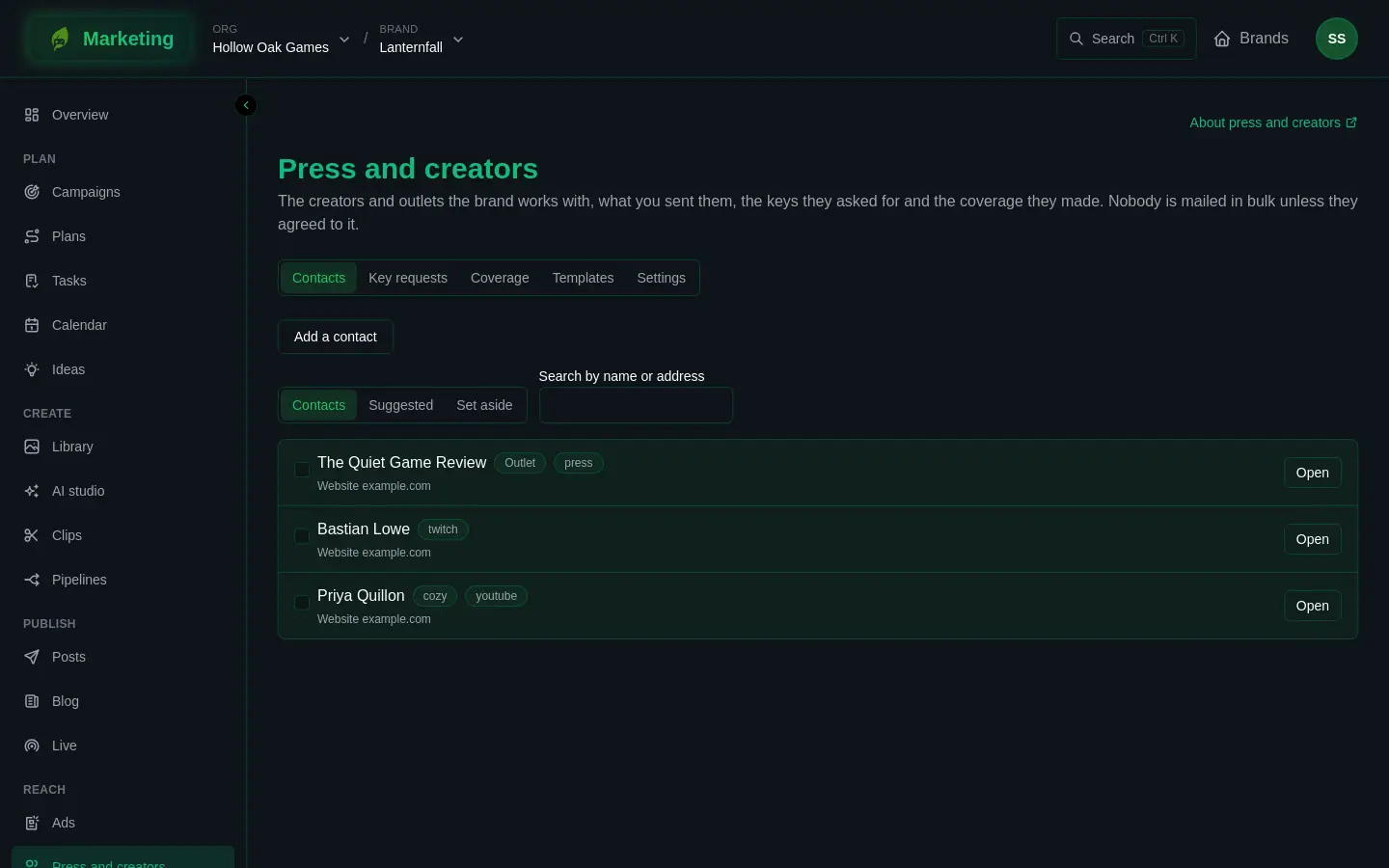
Contacts
- Press Add a contact. Give a Name, an optional email address, whether they are a person or an outlet, and the addresses of their YouTube, Twitch or other pages, one per line. Press Add the contact.
- The list has three views: Contacts, Suggested (people discovery found, see below) and Set aside. Search by name or address.
- In Suggested, press Take on to make someone one of the brand's contacts, or Set aside.
- Press Open on a contact for their page.
On a contact's page you can:
- See their channels, and press Read their audiences again for YouTube and Twitch ones.
- See and record their agreement to be contacted (below).
- Write to them under Write to them.
- Press Log their reply or Add a note to keep what passed between you in the list under What passed between you.
- See the keys they were given, whether they opened them, and coverage they made.
- Under Forget this contact, press Forget them when somebody asks to be forgotten. Their name, address, channels, notes and everything written between you are erased for good, and discovery never suggests them again. This cannot be undone.
Who you may write to
Every mail goes through one rule.
- Somebody who agreed to be contacted may be sent anything, including a template to many people at once. Agreement is recorded when they tick the box on your key request page, or when you press Record their agreement with how they gave it and what they agreed to. They withdrew it records the opposite.
- Somebody who has not agreed may be sent one first message, written for them alone. A template sent as it stands is not allowed to them; change its text. After that first message, nothing more goes until they answer. Each answer back is again written for them alone.
- Nobody is mailed who was forgotten, who has no email address, who withdrew their agreement, or whose address opted out of mail from any brand in the org.
- A mailbox writes first to an address only once, even for another contact or brand.
To send to several contacts, tick them in the Contacts view, choose a Template and press Send the template. The page says how many mails went and how many contacts were skipped because they have not agreed.
Send a mail
- Open the contact and find Write to them.
- Optionally choose a template and press Fill in, which fills the template's placeholders for this contact. Or write what the mail is for and press Draft it for an AI draft, which costs credits.
- Edit the Subject and Message.
- Press Send from the brand's mailbox.
If the contact may not be written to, the page says why instead of showing the form.
Key requests
Creators ask for a key on the brand's public page, described in Press pages the public sees. Each request waits in Key requests, with their channel, game and message. By default only requests waiting for a decision are shown.
- Give a key gives a key from a batch for the chosen game, and can mail the creator the link to it from the brand's mailbox. If you switch mailing off, or the mail fails, the page shows the link once for you to send yourself. Giving a key needs the same access as Keys, which is an admin's by default.
- Decline closes the request.
Coverage
Press Log it after filling in the address, title, kind, publication date and optionally the views, to record a video, stream, article or other piece. Coverage made after a creator was given a key is marked After a key. Discovery adds coverage it finds too.
Templates
A template is a name, a subject and a message with placeholders the page lists, filled in for each contact. Use New template, Edit and Remove.
Settings
- Key request page: switch Take requests for keys on, and write what the page says above its form. The page shows its address.
- Mailbox: choose which connected mailbox outreach goes from, or leave it as the first one connected. Connect one first: see Connect Gmail and Connect Microsoft 365. Enter The brand's postal address. Every mail ends with the brand's name, this address and a link to stop getting mail, and someone who uses that link stops getting mail from every brand in the org. A brand cannot send from a shared mailbox without an address here.
- Discovery: finds who is streaming or covering the games the brand markets on YouTube and Twitch, through the brand's own connections, and creators who cover the Similar games you list. Switch on Look for creators every day, or press Look now. Each search is paid in credits. Results appear under Suggested, and the page says which networks were skipped and why, for example not connected or not enough credits.
If it goes wrong
A mail that cannot be sent says why on the contact's page. If discovery skips a network, connect or reconnect it in Connections: see Connections.