Finishing a post by hand
Some posts cannot be sent for you from start to finish. Either the network's own app has to add something (a sound, licensed music, a sticker), or the place you are posting to has no way for Marketing to post at all. In both cases the post waits for a person, and Marketing keeps track of it until you say it is out.
A version in this state shows Waiting for a person, and the post does not become Published until every version is closed.
Finishing in the network's own app
Use this for a version that needs the network's app.
- In the post, tick Finish it in the app on a phone on that channel's version. Without it, Marketing posts it for you through the brand's connection. The tick box appears on every network that can be finished in its app. Discord is not one of them.
- Schedule the post as usual. See Posts. Nothing is sent to the network and nothing is charged.
- When it is due, the person who approved the post is told. If that person can no longer edit the brand's posts, the author is told, and if neither can, everyone who may publish is told. The message is Ready to finish on the network's name, in your GreenMind inbox and on any device where you turned on notifications.
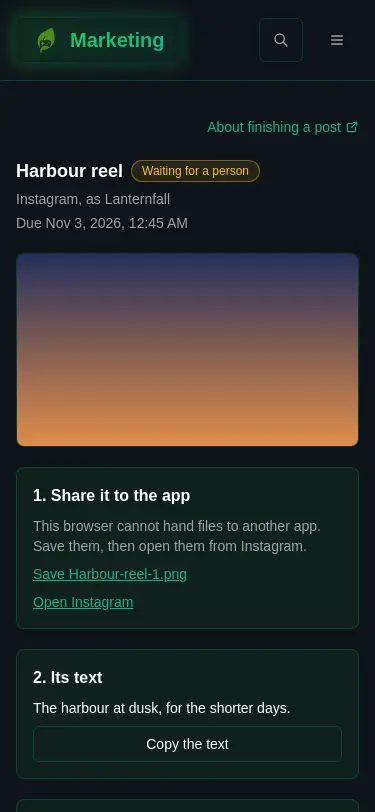
- Open the message. It opens a page for that one version, built to be used on a phone. Work down it:
- Share to the network. This hands the pictures or video to your phone's share sheet. Choose the network's app, add what you like there, and post from the brand's account.
- If your browser cannot hand files to another app, you get Save links for each file and Open the network instead.
- Copy the text copies the version's text, ready to paste.
- Tell Marketing it is out. There are two ways:
- Wait. The page says it looks for the post among the account's posts every ten minutes and closes it by itself.
- Paste the post's address into Its address and press Mark it published.
When Marketing cannot find it
Marketing can read an account's posts only on some networks and connections. Where it cannot, the page asks for the address straight away. Where it can, and has looked for a while without a match, you get a message, Where did it go out on the network, and the page asks you to paste the address.
Pasting the address matters. It is how the post's numbers are read afterwards, so a post you never close has no How it did.
Channels you post to by hand
A brand with a game linked has channels that have no connection at all: Steam announcement, Steam store page, Google Play listing and App Store listing. They are marked Posted by hand. See Brand settings for linking a game.
- Write the post and tick the channel, then schedule it.
- Scheduling makes a task on your Tasks page, titled with the post and the channel and due at the scheduled time. It carries the channel's instructions, the text to paste and the names of the pictures. For a Steam announcement, the instructions tell you to open the game's events and announcements in Steamworks, paste the text and add the pictures.
- Do the work in the store's own tools.
- Back in the post, under Once it is posted, paste the address it went out at, paste the address and press Mark it published. The task is closed for you.
The address must be a full address starting with https://, and on one of the channel's own sites. If it is not, the page says which sites it expects.
A Steam announcement is written in Steam's own markup, and the version is marked BBCode so you know. Other channels use plain text.
Who can do this
Anyone who can see the brand's posts can open the finish page. Closing a version, with Mark it published, takes the right to edit posts.
If it goes wrong
- The share button never appears. Your browser may not support sharing files. Use the Save links, then open the files from the network's app.
- The post never becomes Published. A version is still waiting for a person. Open the post and look for the one marked Waiting for a person.
- The address is refused. Paste the whole address, from
https://, and copy it from the network's own page for the post.
More in Post problems.