Clips
Clips cut the moments worth keeping out of a stream's recording, reframed for phones and captioned if you like, and put them in the library. From there a clip can become a post.
Clips need recordings, and recordings come from streams. Each stream that reaches the relay is recorded and shows up here. If the brand has not streamed, there is nothing to cut yet. See Live and After the stream.
Open Clips in the Create group of the sidebar. Everybody on the brand can look. An Editor or an Admin can cut clips. To turn a clip into a post you need to be able to write the brand's posts (see People and roles).
The list of recordings
The page has two lists.
Recordings has one line for each stream: its title, when it started, how long it ran, how many clips have been cut from it, and a badge for the state of the recording:
- Recorded: the whole recording is in.
- Arriving: still on its way. You can ask for clips already, and they are cut once it is in.
- Partly recorded and Recording lost: part of the recording was lost on its way here. The platforms keep their own copies.
- No recording: nothing of the stream was recorded, so there is nothing to cut.
Newest clips shows the latest clips, each with a badge for where it has got to: Waiting for the recording, Cutting, Making its versions, Ready or Failed. A clip a pipeline or a kit made by itself also carries Draft until somebody keeps it.
If the page says No streams yet, no stream has reached the relay for this brand.
Read a recording's timeline
Select a recording. Its timeline draws, over the length of the stream:
- Viewers;
- Chat messages a minute;
- “Clip that” markers, made by the Clip that button while live;
- Other markers;
- Suggested moments, shaded;
- Recorded, the part that is in.
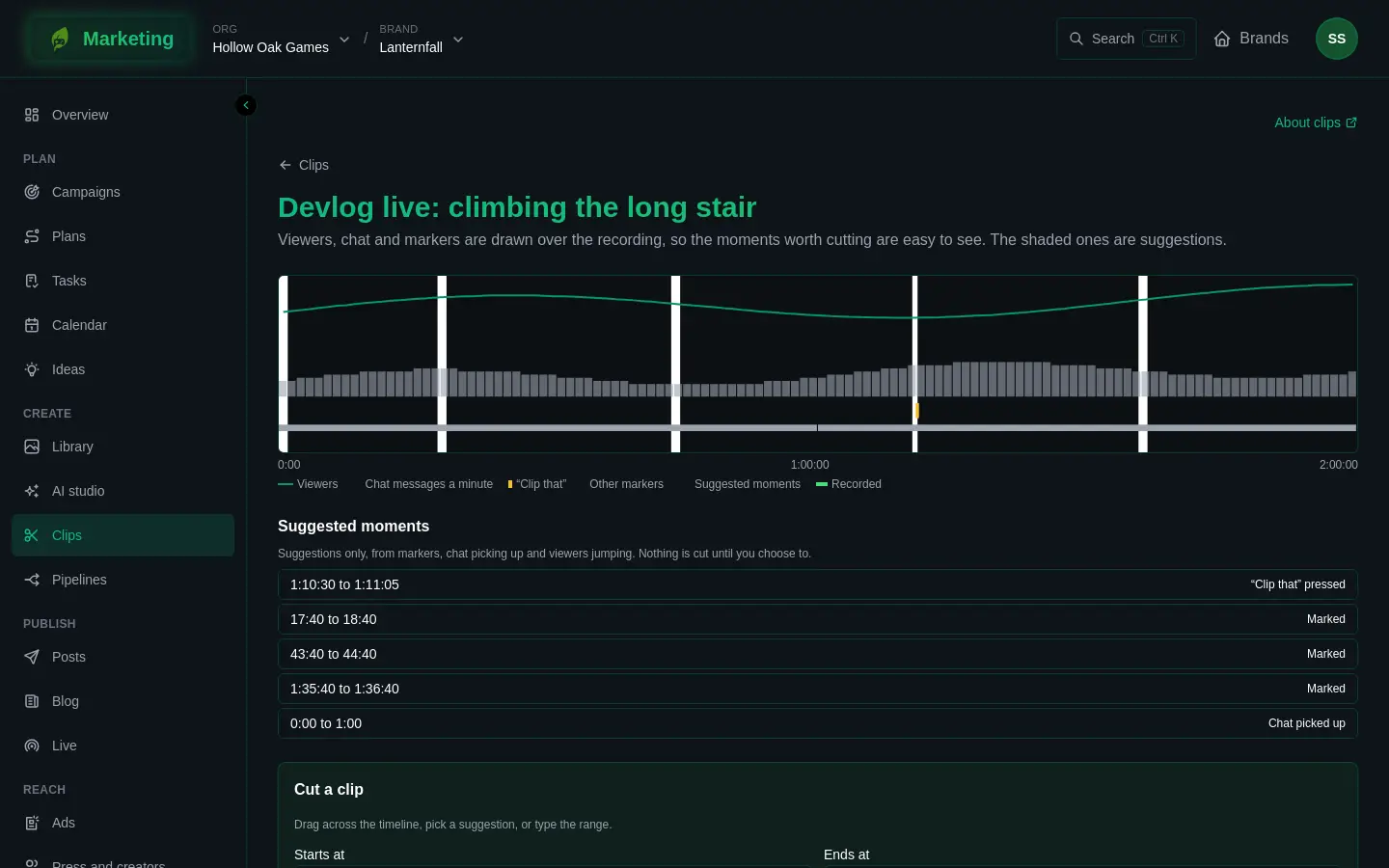
Under Suggested moments the page lists ranges worth a look, each with the reason: “Clip that” pressed, Marked, Chat picked up or Viewers jumped. They are suggestions only. Nothing is cut until you choose to. If nothing stood out, the page says so.
Cut a clip
- Choose a range. Drag across the timeline, press a suggested moment, or type it under Starts at and Ends at as minutes and seconds, such as 12:30.
- Optionally give it a Title. If you leave it empty, it is named after the stream and the time.
- Choose the Vertical 9:16 version, the phone-shaped copy:
- From the scene appears if the scene you chose was tagged with a layout while live.
- Facecam above, gameplay below stacks the two. Say Where the facecam is and how much of the height it takes.
- Crop keeps a tall strip of the frame. Say where it is centred, left to right.
- No vertical version skips it. A small drawing of the frame shows what each choice keeps.
- Leave Burn in captions on to have what is said written into the video. It is transcribed and paid for in credits too.
- Look at the price, "About ... credits for the cut and its versions", then press Cut the clip.
The page takes you to the new clip. A clip is at least a second long, and there is a longest length: the page tells you if you pass it ("A clip is at most ... long."). A recording is kept an hour at a time, so a range cannot run from one hour into the next. If you ask for one, the page says to choose it on either side.
If the price line says "Cutting clips is not priced yet, so it cannot be paid for.", the page is telling you the cut cannot be paid for yet. See Credits.
A clip and its versions
The clip's page shows each version as it is made: Original 16:9, Thumbnail, Vertical 9:16, 16:9 with captions and 9:16 with captions. Each has a badge: Waiting, Being made, Made, Failed or Not made. The page checks again every few seconds while the clip is being made. Each finished version has Open in the library, and the captions are listed with their times.
- Keep this clip is on clips that were made by themselves. It approves the files, so they can go in posts and collections.
- Try again runs a failed clip or a failed version again.
- Put away removes the clip from Clips. Its files stay in the library, so a post already made from one keeps its video.
Send it out
Under Send it out, choose a Version and press Make a post. That makes a draft post with the video in it, for somebody to finish and publish to any channel. See Posts.
If the brand has a YouTube channel connected, Upload to YouTube makes a draft post for YouTube, which is uploaded when somebody publishes it. A vertical version under three minutes goes out as a Short. Without a YouTube channel, the page says to connect one on Connections. If an upload stays private, see Connect YouTube.
Once a post takes the clip to YouTube, its address shows under In a blog post, ready to paste into a blog post. The blog embeds video from YouTube. See Blog.
Posts with this clip lists the posts it is in.
Clips cannot be sent to Twitch: Twitch has no way for an app to upload video. Twitch keeps its own archive and clips of each broadcast.
If something does not work
- A clip says Failed. Press Try again. The page shows the reason beside the badge.
- A clip is stuck on Waiting for the recording. The recording has not arrived yet. It comes in some time after the stream ends. If it does not arrive after a long wait, the clip gives up and shows Failed.
- You cannot cut clips. Your role on the brand is Viewer or Commenter. The page says "Ask a brand editor to cut clips."
More in Troubleshooting.