Store bundles
A store page needs a lot of pictures, each at an exact size. Store bundles list every picture a store asks for, lets you choose which of your library pictures fills each place, makes each one at the right size, and gives you a checklist to work through.
Marketing does not send these pictures to the stores. The stores give apps no way to upload the art of a store page, so you download each picture and upload it in the store's own console, ticking the list off as you go.
Open Library, then Store bundles. Everybody on the brand can look and download. An Editor or an Admin can choose pictures and make them (see People and roles).
What you need first
A brand with a linked game. The game brings the stores' sizes with it. Without one, the page shows No stores yet, and says: "Link a game to this brand and its stores' sizes appear here." See Brands and kits.
You also need the pictures themselves in the Library. A bundle takes images only.
Fill in a bundle
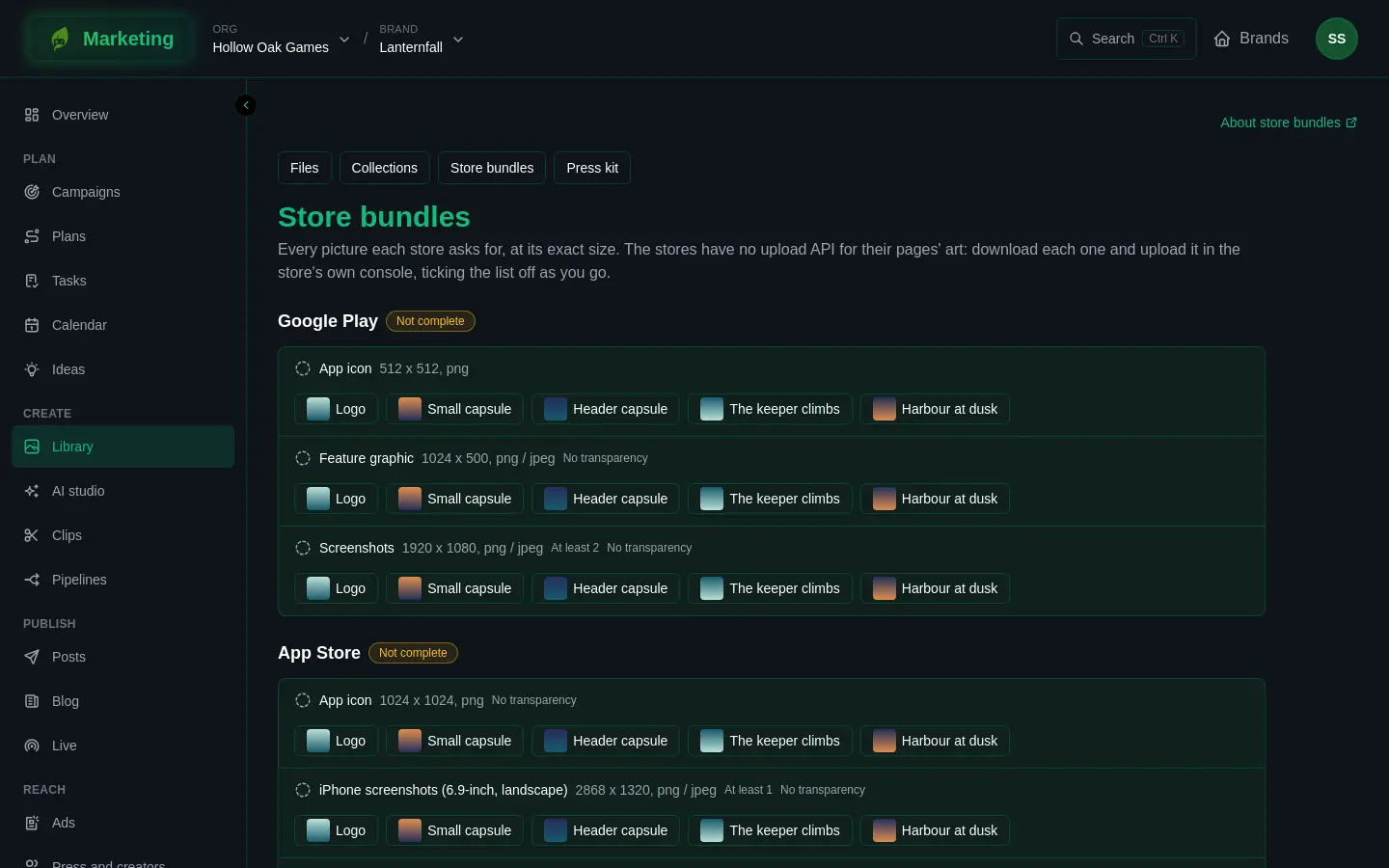
Each store the brand has sizes for has its own section. A section carries a badge, Ready to upload when every required picture is filled and made, and Not complete until then. The stores are Steam, Google Play and the App Store.
Each line is one picture the store asks for. It shows:
- the picture's name and its size in pixels, with the file formats the store takes;
- Optional, if the store does not insist on it;
- how many it needs, such as "At least 3", for places that take several, like screenshots;
- No transparency or Transparent background, where the store has a rule about that;
- a tick when the line is done, and a dashed circle while it is not.
To fill a line:
- Choose a picture from the buttons under the line. Each button is a picture from the library. A place that takes one picture shows the buttons only while it is empty, so press Take out first if you want to swap it. A place that takes several keeps offering them, and each choice adds one.
- Press Render (costs credits) beside the picture you chose. The picture is cut to the exact size around the focus point you set in the library, and shows Being made for a moment.
- When it is made, Download appears. Download it and upload it in the store's console.
- Take out removes a picture from the line.
A line is done when it has enough pictures and they have all been made. The section's badge turns to Ready to upload when every line the store requires is done. Lines marked Optional do not hold it back.
Credits
Rendering a size costs credits. The button here does not show the price first. To see the price before you commit, open the picture in the Library and use Render under Sizes, which shows it first. See Credits.
Check before you upload
On the picture's own page in the Library, press Check beside a size. It tells you if the size, weight or format is wrong for that store. It also makes two guesses and says so: whether text or a logo may sit outside the area the store can crop away, and whether a logo may be too small to read at the store's smallest capsule. Use them as hints. See Library.
For Steam, the pictures are only part of the page. See Steam store page.
If something does not work
- Render fails. The line shows the reason. Fix it, then press the button again.
- There are no buttons to choose a picture. Either the line already holds a picture (press Take out first), or your role on the brand is Viewer or Commenter.