Assistants
An AI assistant, such as Claude, can read a brand's numbers and posts and draft work in it for you to review. You connect it by signing in with GreenMind. You never copy a token or a password into the assistant's settings.
Where to find it
Open Connections, under Brand, and go to the Assistants section. Everyone who is on the brand can see it. Connecting the assistant does not need a brand admin.
The section is titled Sign in with GreenMind and marked Recommended. Under Your assistant, choose the one you use:
- Claude Code: copy the command shown and run it, then run
/mcpin Claude Code, choose the server and sign in. - Claude desktop and claude.ai: in Claude, open Settings, then Connectors, and choose Add custom connector. Paste the address shown, then sign in when Claude asks.
- Other MCP clients: add the configuration shown to the client, then sign in when it asks.
Give the assistant the server's address and nothing else. Leave out any Authorization header, because with one set, Claude Code never offers to sign in. Copy the address from the page rather than typing it.
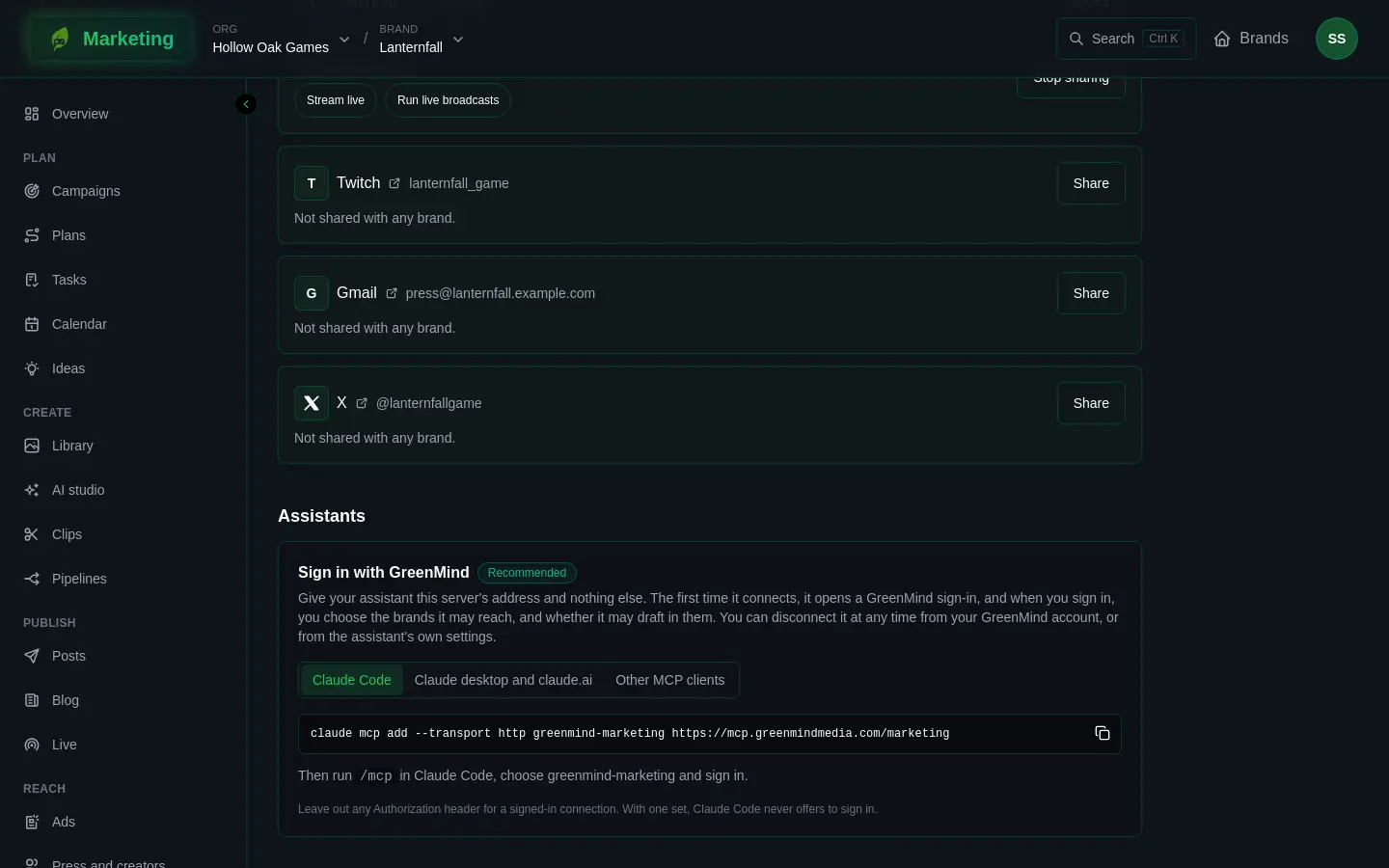
What you choose when you sign in
The first time the assistant connects, it opens a GreenMind sign-in. After you sign in, you decide what it may reach:
- Read only or Read and draft. An assistant that asks to draft shows "It asked to draft in your brands as well."
- Which brands can it reach? Tick the brands it may see. Leave all unticked to give it every brand you are on, including ones you join later. If you cannot edit any of your brands, it can only read them.
Drafting works only in brands where you are an editor or above. Whatever the assistant does, it does as you, at your own role in each brand. It can never do more than you could.
You can disconnect an assistant at any time, from your GreenMind account or from the assistant's own settings.
What it can read
Read access covers:
- the brands you gave it, and whether you may draft in each
- a brand's numbers by day, marked final or not yet
- posts, with their text for each channel and where each went out
- what the team made lately, and the brand's content ideas
- pipelines and their runs
What it can draft
With Read and draft, it can:
- draft a post for people on the brand to review, change and schedule
- draft a plan, with phases, milestones and tasks
- draft a message to someone in the press and creators list
- file a content idea. Where you may edit the brand, it is accepted at once and its draft post is made.
- add items to the brand's activity
- dry run a pipeline, showing what it would do and cost with nothing run, spent or posted
- propose a changed recipe for a pipeline. It becomes the pipeline's newest version, but not its live one: the pipeline keeps running as it was until a person makes the new version live. An assistant cannot make a version live.
Nothing it drafts is published or sent. A person reviews, schedules and sends it, in Posts or wherever the draft lands.
Two things it can ask for run an AI model and are paid in the brand's credits: suggesting new content ideas and writing captions. See Credits.
If it goes wrong
- It says there is no such brand. A brand you did not tick looks the same as a brand that does not exist. Sign in again and tick it.
- It cannot draft. You signed in with Read only, or you are not an editor in that brand. Sign in again and choose Read and draft.
- Claude Code never offers to sign in. An Authorization header is set for the server. Remove it.